Creating high-quality images, videos, and marketing content has become much easier thanks to AI-powered creative tools. Magnific, formerly known as Freepik, brings together image generation, video creation, editing tools, stock assets, and project management features into a single platform.
Whether you're a graphic designer, marketer, freelancer, content creator, or business owner, Magnific can help streamline your creative workflow and reduce the time spent switching between multiple tools.
In this guide, you'll learn how to use Magnific, explore its key features, and discover practical ways to get the best results from the platform.
What Are the Key Features of Magnific?
Before getting started, it's important to understand the tools available inside Magnific. The platform combines multiple AI-powered features that support different stages of the creative process.
AI Image Generator
The AI Image Generator allows users to create original images from text prompts within seconds.
Common use cases include:
Social media graphics
Blog featured images
Product concepts
Marketing visuals
Digital illustrations
Instead of relying solely on stock photos, users can create custom visuals tailored to their specific needs.
AI Video Generator
The AI Video Generator transforms text prompts or images into short videos.
Ideal for:
Product promotions
Social media content
Marketing campaigns
Short presentations
This feature helps creators produce engaging video content without advanced editing skills.
AI Image Editor
The AI Image Editor simplifies image editing tasks that would normally require professional software.
You can:
Remove backgrounds
Replace objects
Expand images
Change colors
Improve compositions
This makes everyday image editing faster and more accessible.
AI Upscaler
The AI Upscaler enhances image quality while preserving important details.
Useful for:
Product photography
Print materials
Large banners
Older low-resolution images
This feature helps ensure images look sharp across different formats and sizes.
AI Audio Generator
The AI Audio Generator converts written text into voiceovers.
Suitable for:
Explainer videos
Presentations
Podcasts
Social media content
It offers a convenient way to create audio content without recording your own voice.
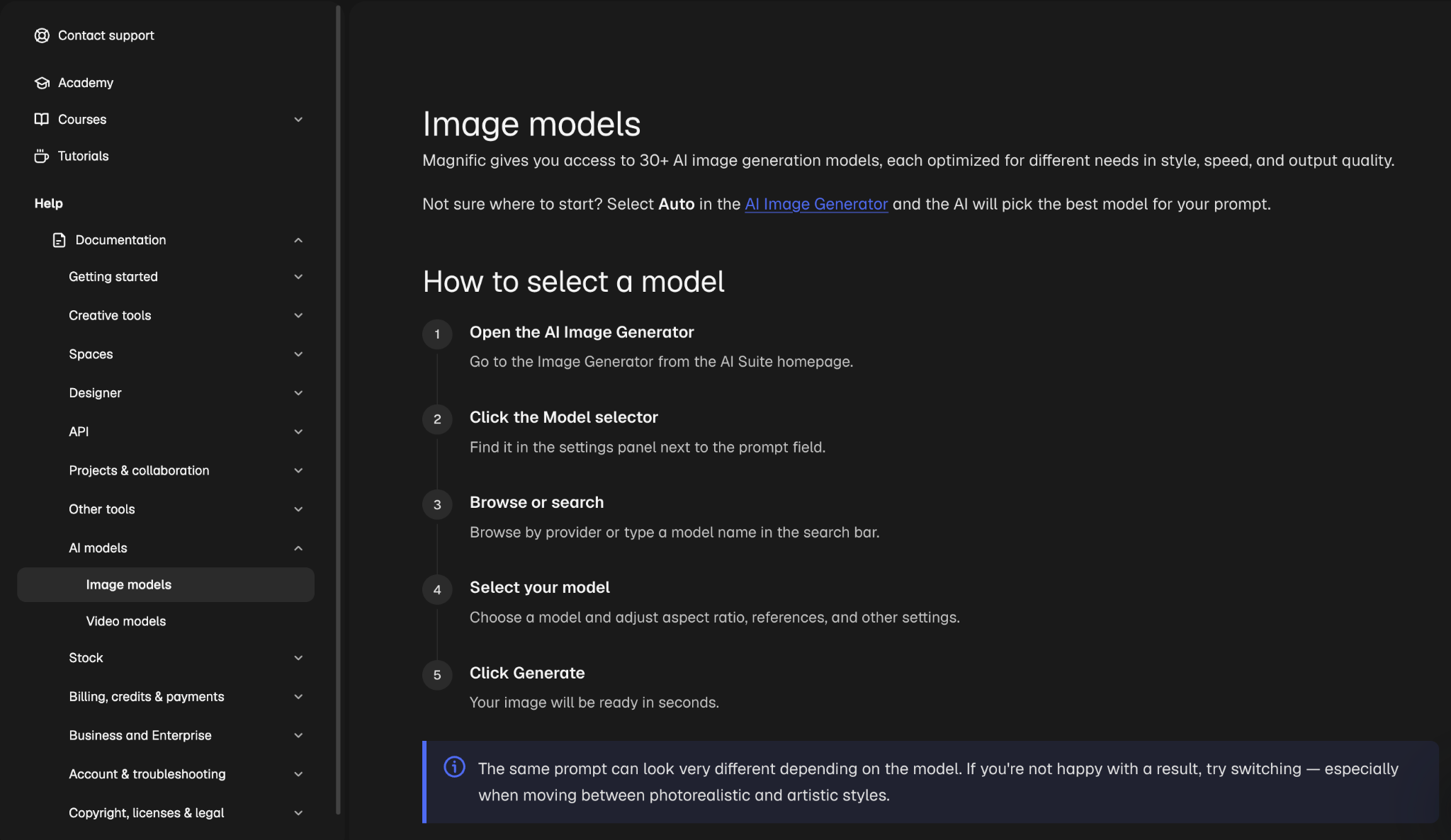
AI Models
Magnific provides access to various AI models that generate different visual styles and outputs. Users can experiment with multiple creative approaches to find the best results for their projects.
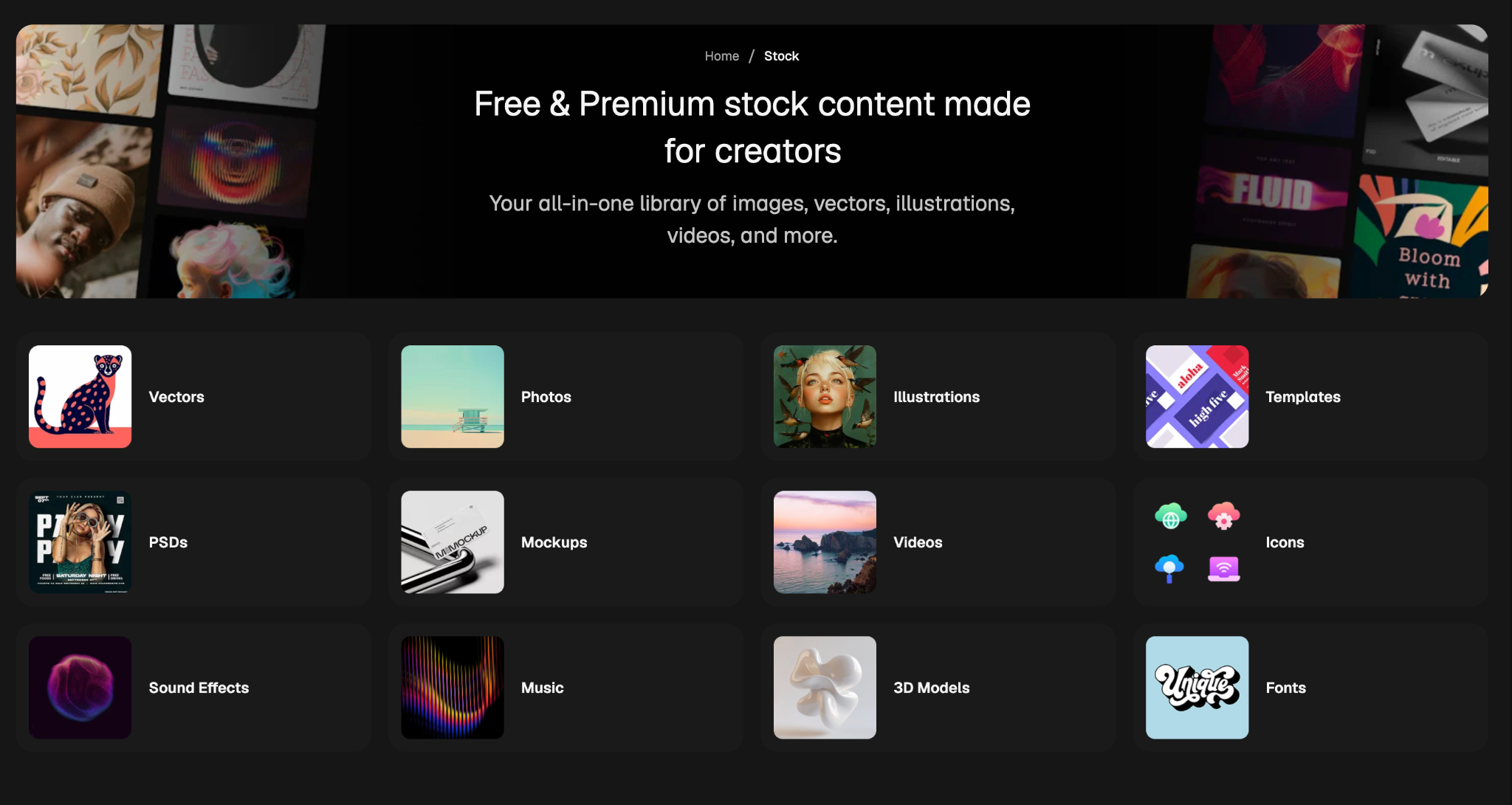
Stock Images and Templates
Magnific still includes the extensive asset library that made Freepik popular.
Users can access:
Stock photos
Vectors
Icons
PSD files
Mockups
Presentation templates
Illustrations
These resources can be combined with AI-generated content to create professional designs more efficiently.
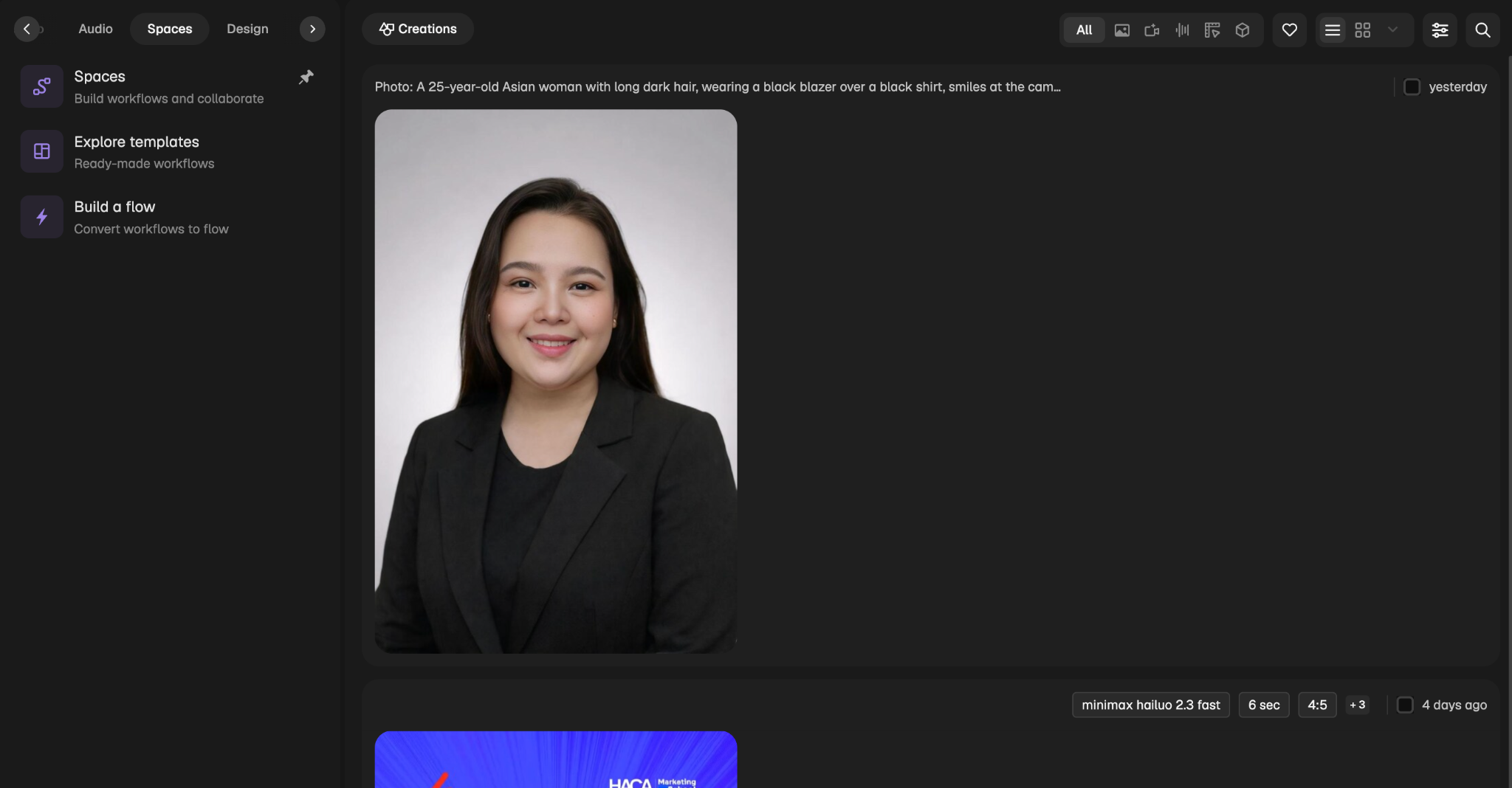
Spaces (Workflow Builder)
Spaces helps users organize prompts, files, and creative projects in a centralized workspace.
It is particularly useful for:
Freelancers
Agencies
Marketing teams
Content creators managing multiple projects
How to Get Started with Magnific
Getting started is straightforward, even if you've never used AI design tools before.
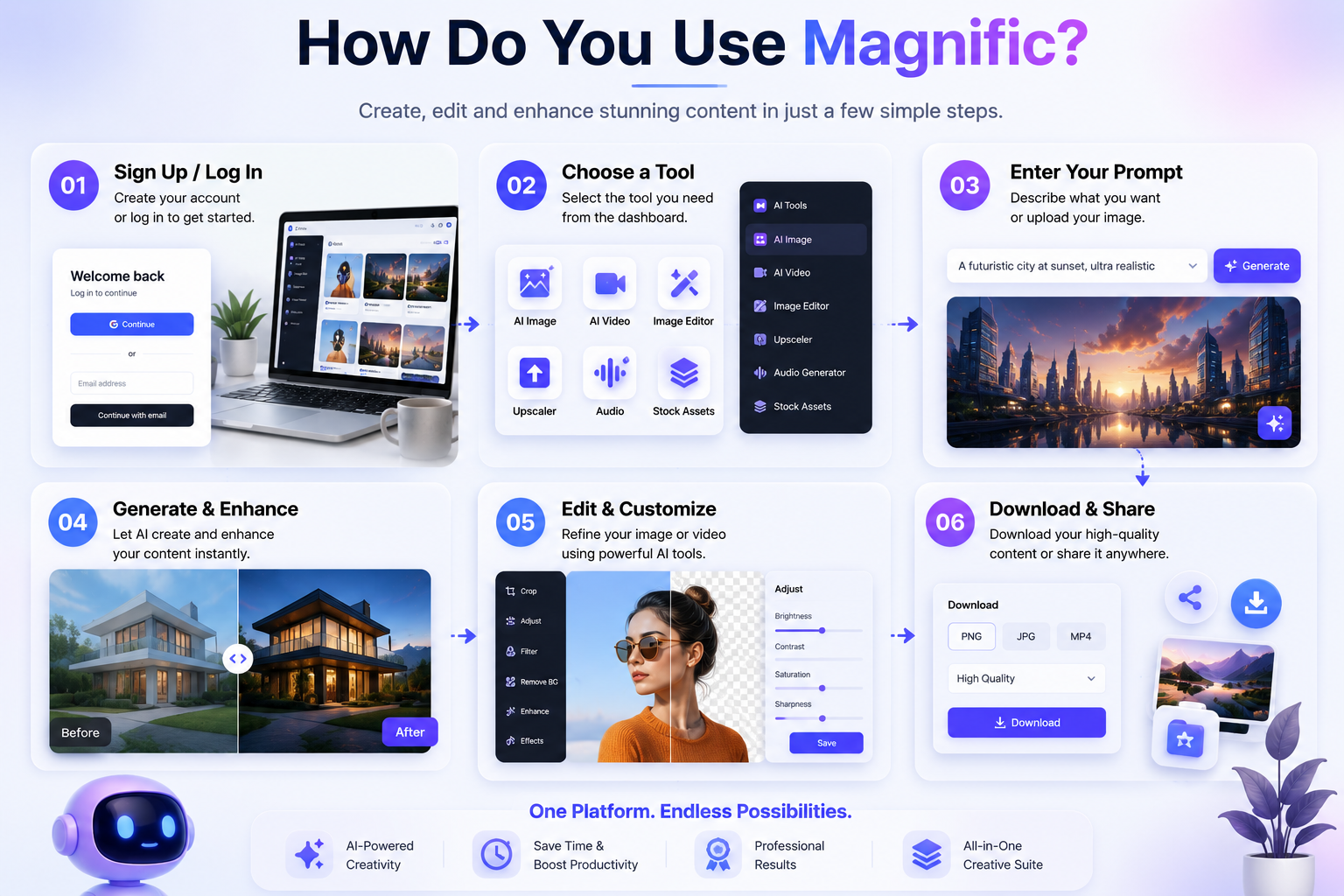
Step 1: Create an Account
Sign up for a Magnific account using your email address or a supported login method.
After signing in, you'll be taken to your dashboard where all tools and resources are accessible.
Step 2: Explore the Dashboard
Spend a few minutes exploring the available features.
You'll typically find sections for:
AI image generation
AI video creation
Image editing
Upscaling
Audio generation
Stock assets
Project management
Understanding the layout will help you navigate the platform more efficiently.
How to Generate Images with Magnific
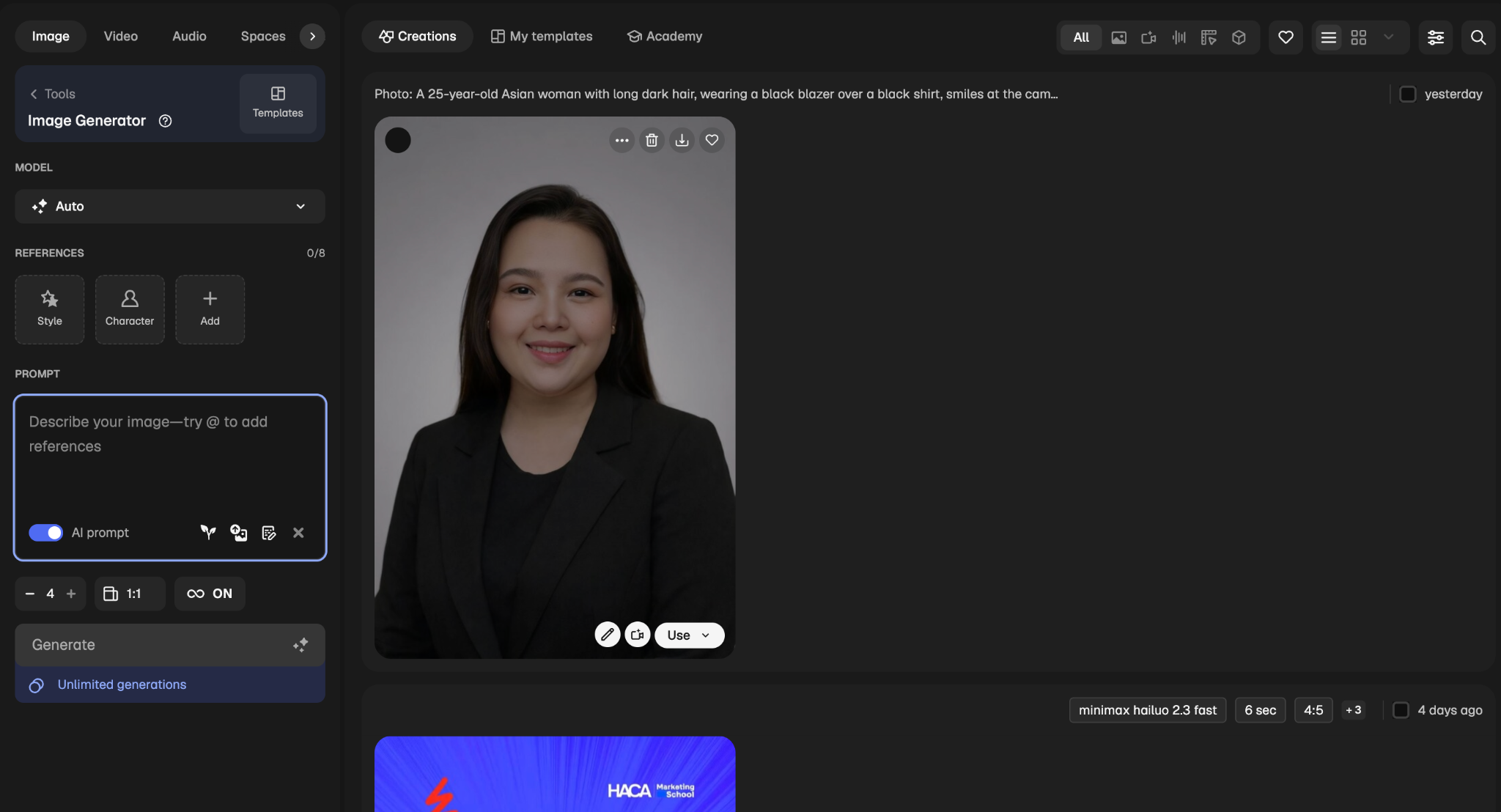
One of the most popular features in Magnific is the AI Image Generator.
Step 1: Open the AI Image Generator
From the dashboard, select the image generation tool.
Step 2: Enter a Detailed Prompt
Describe exactly what you want to create.
For example:
"Modern coffee shop interior with warm lighting, wooden furniture, cinematic photography style."
Detailed prompts generally produce more accurate results.
Include information such as:
Subject
Style
Color palette
Lighting
Camera angle
Background details
Step 3: Select Your Settings
Depending on the available options, choose:
Image dimensions
Aspect ratio
AI model
Artistic style
Step 4: Generate the Image
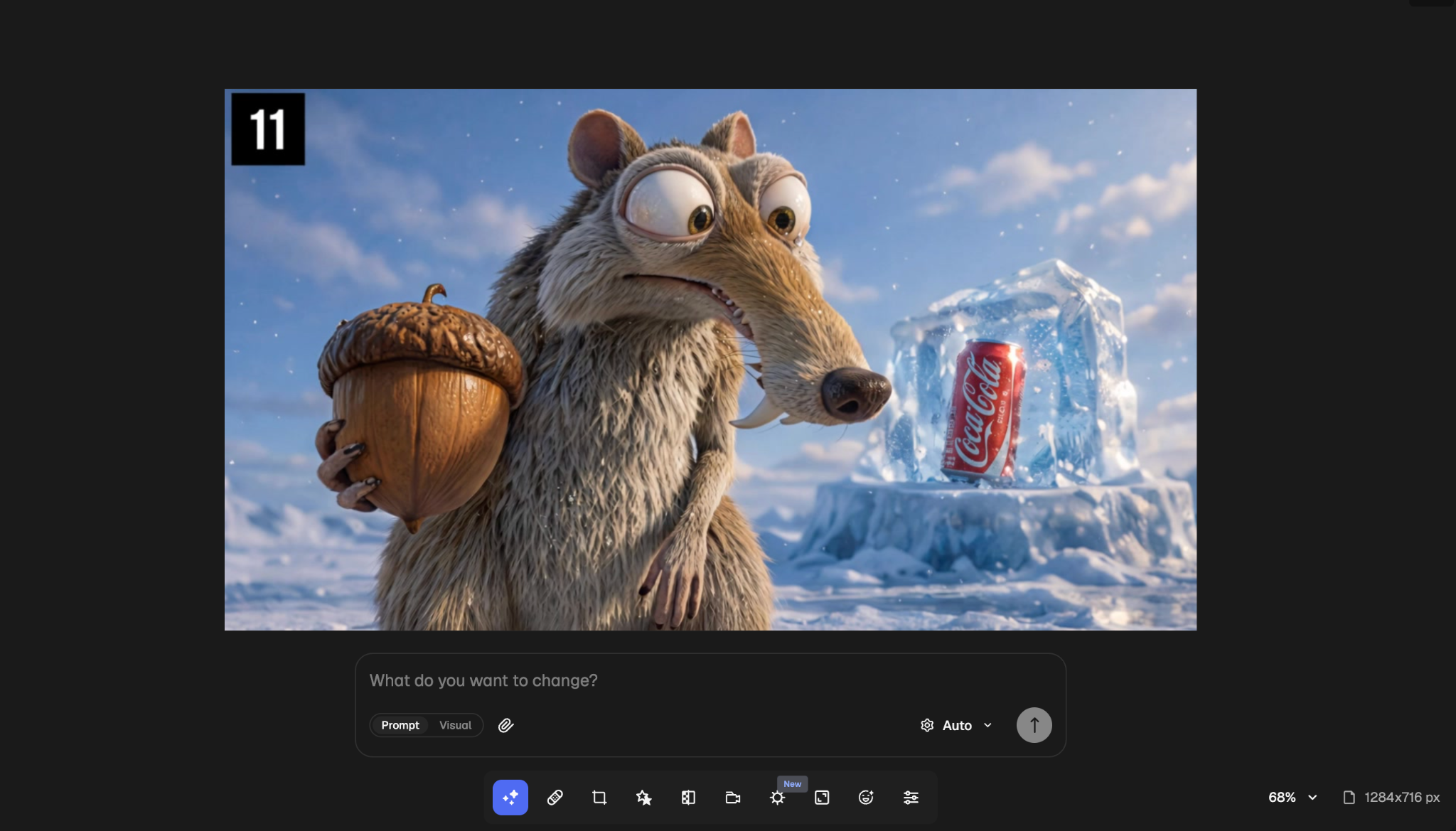
Click Generate and wait for the AI to create multiple image variations.
Step 5: Refine Your Results
If the image isn't perfect, adjust your prompt and generate additional versions until you achieve the desired outcome.
How to Edit Images Using AI
Magnific includes powerful editing tools that simplify common design tasks.
Upload Your Image
Open the AI Image Editor and upload the image you'd like to modify.
Choose Your Edit
Common editing options include:
Removing backgrounds
Replacing objects
Extending image borders
Changing colors
Enhancing compositions
Example Workflow
Imagine you have a product image with a cluttered background.
You can:
Upload the image.
Remove the background.
Generate a clean studio setting.
Adjust colors and lighting.
Download the finished design.
This entire process can often be completed in minutes.
How to Create Videos with Magnific
Video content continues to dominate digital marketing, and Magnific makes video creation more accessible.
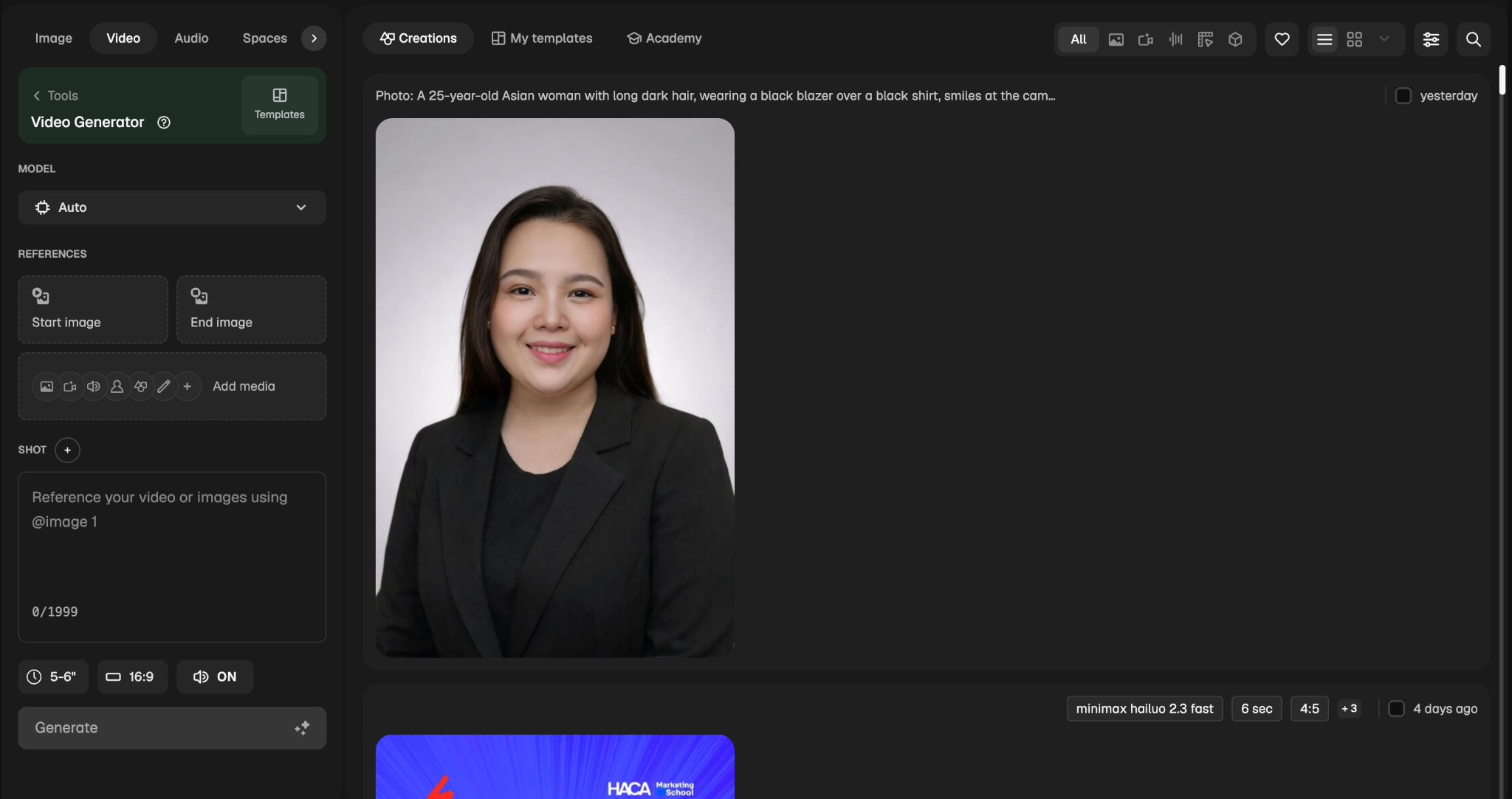
Step 1: Open the Video Generator
Navigate to the AI Video Generator from your dashboard.
Step 2: Choose an Input
You can either:
Enter a text prompt
Upload an existing image
Step 3: Describe the Motion
For example:
"Slow cinematic camera movement around a luxury perfume bottle with dramatic lighting."
Step 4: Generate the Video
The AI will transform your input into a short animated video sequence.
Step 5: Export and Share
Download the finished video and use it for:
Instagram Reels
TikTok
Facebook Ads
Product promotions
YouTube Shorts
How to Improve Image Quality with AI Upscaler
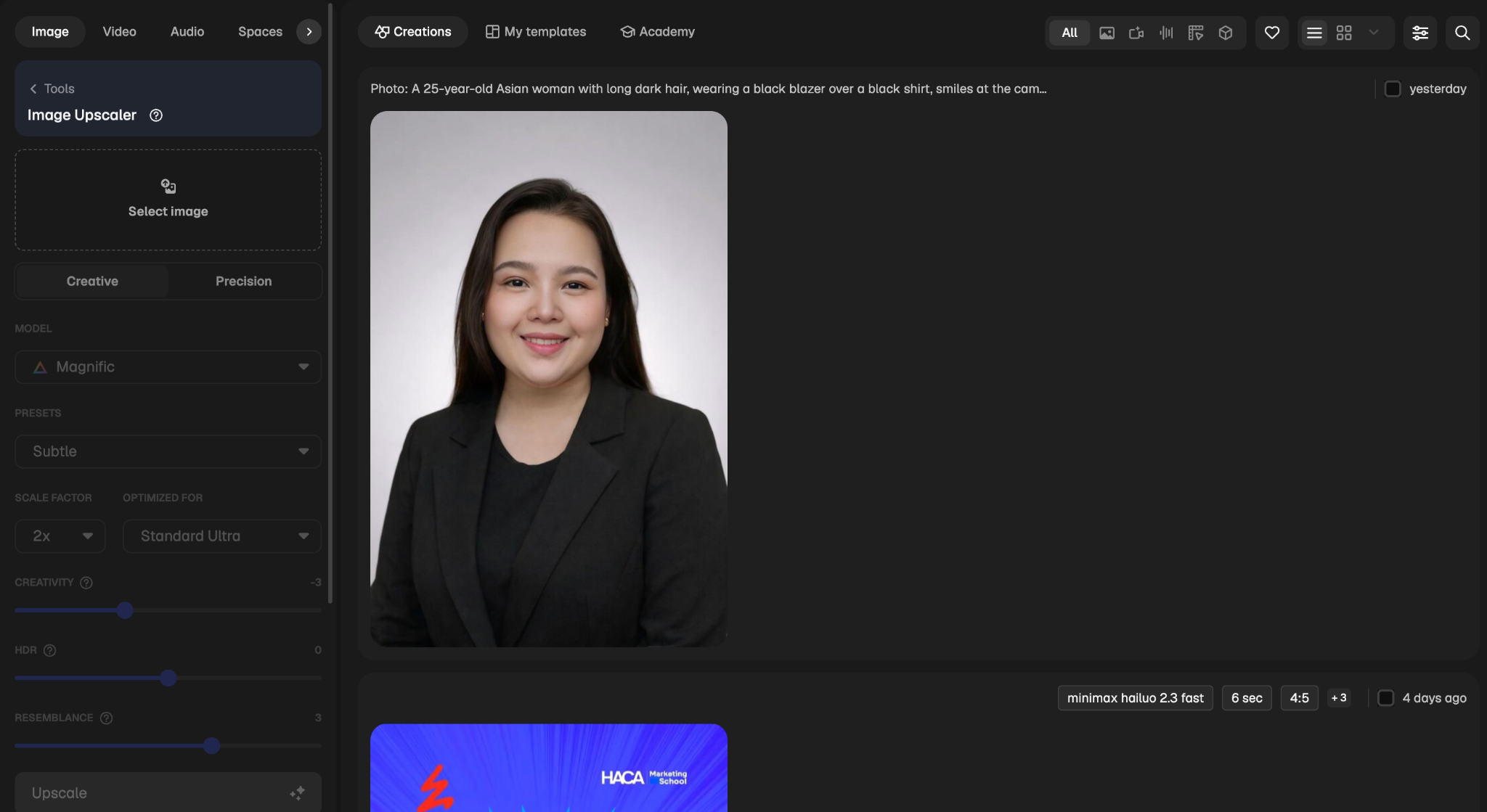
If your images appear blurry or lack sufficient resolution, the AI Upscaler can help.
Steps to Upscale an Image
Open the AI Upscaler.
Upload your image.
Select the desired resolution.
Start the enhancement process.
Download the improved version.
This feature is especially valuable when preparing images for print or large displays.
How to Create AI Voiceovers
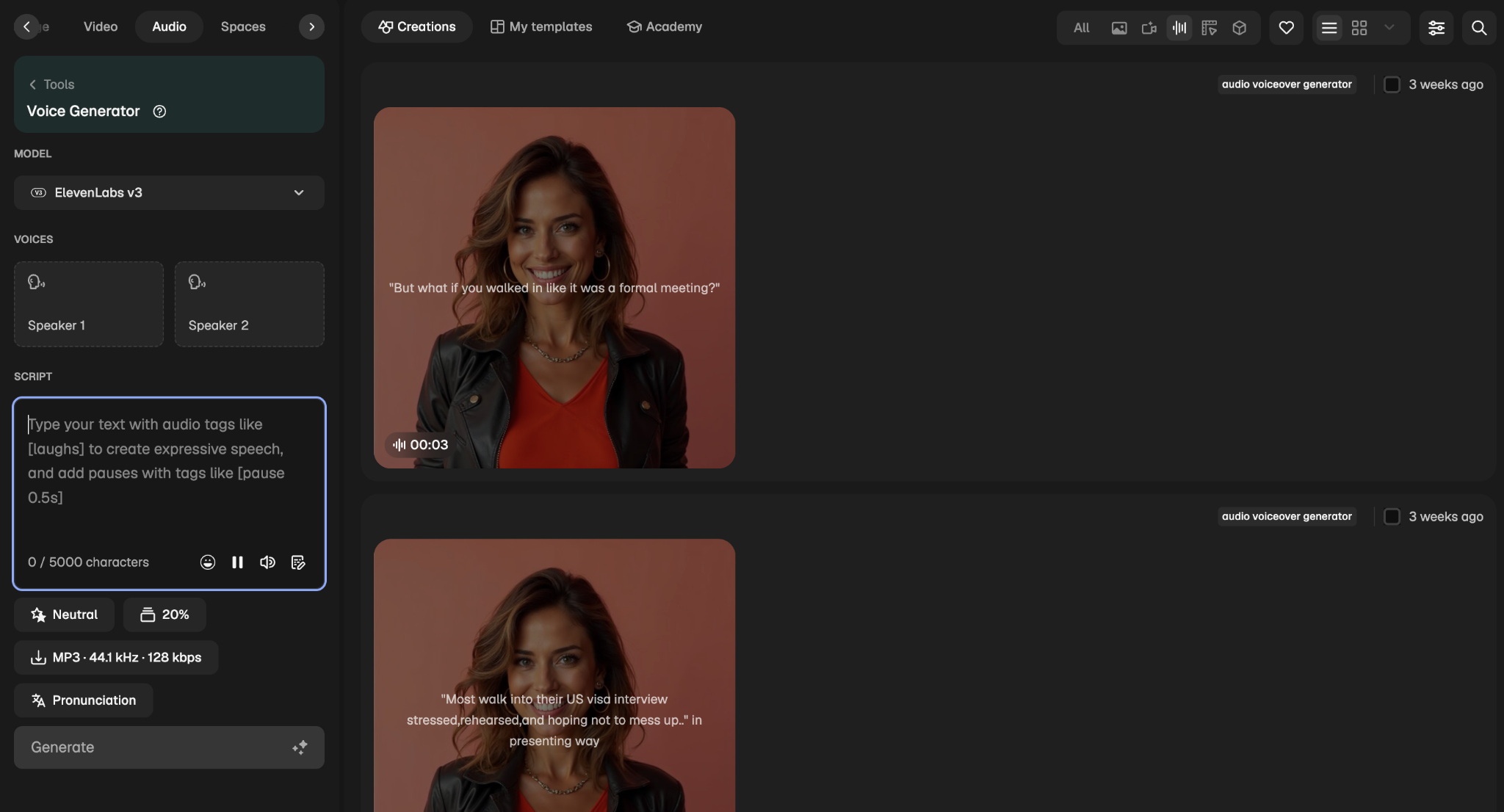
The AI Audio Generator allows users to transform written text into spoken audio.
Step 1: Open the Audio Generator
Access the feature from the main dashboard.
Step 2: Enter Your Script
Paste the text you want converted into speech.
Examples include:
Product descriptions
Video narrations
Educational content
Presentation scripts
Step 3: Choose Voice Settings
Select your preferred voice style and available customization options.
Step 4: Generate and Download
Create the audio file and export it for use in your content projects.
How to Use Stock Assets and Templates
Magnific combines AI tools with a large library of ready-to-use design resources.
Search the Asset Library
Use the search function to find:
Photos
Vectors
Icons
Mockups
Templates
Illustrations
Customize Assets
You can combine stock assets with AI-generated content to create unique marketing materials.
Example
A marketing campaign might involve:
Generating an AI product image
Placing it inside a mockup
Adding icons and illustrations
Exporting a complete advertisement
This approach speeds up content production considerably.
How to Organize Projects with Spaces
As your creative workload grows, organization becomes increasingly important. Spaces helps you keep everything in one place.
Use Spaces To:
Save prompts
Store generated assets
Manage client projects
Organize campaigns
Collaborate with team members
This feature is particularly useful for agencies and freelancers handling multiple projects simultaneously.
Tips for Getting Better Results in Magnific
Write Specific Prompts
Detailed prompts almost always outperform vague descriptions.
Instead of writing:
"A laptop"
Try:
"Modern silver laptop on a clean desk with natural window lighting, minimalist workspace, professional photography."
Generate Multiple Variations
Rarely settle for the first result. Generating multiple versions often leads to stronger creative outcomes.
Combine Multiple Tools
Many successful users combine several Magnific features in a single workflow.
For example:
Generate an image.
Edit the image.
Upscale the image.
Create a video from the image.
Add an AI-generated voiceover.
This creates a complete content production process within one platform.
Magnific is just one example of how AI can streamline creative work. If you're exploring AI tools for different areas of digital marketing and SEO, you can also explore The 10 Best SEO AI Tools for 2026.
Save Successful Prompts
Building a library of effective prompts can save significant time on future projects.
Who Should Use Magnific?
Magnific is useful for anyone who regularly creates visual content.
It is particularly beneficial for:
Graphic designers
Content creators
Marketing teams
Freelancers
Agencies
Small businesses
Social media managers
Its combination of AI tools and design resources makes it suitable for both beginners and experienced professionals.
Conclusion
Magnific has evolved into a comprehensive creative platform that allows users to generate images, edit visuals, create videos, produce voiceovers, access stock assets, and organize projects from a single workspace.
By learning how to use each feature effectively, creators can reduce production time, improve content quality, and simplify their overall workflow. Whether you're creating social media graphics, marketing campaigns, product visuals, or business presentations, Magnific provides the tools needed to bring ideas to life more efficiently.