A UI/UX design project is more than a collection of visually appealing screens. It involves understanding a problem, exploring user needs, making design decisions and developing an interface that serves a purpose. A case study brings these stages together and shows the thinking behind the final design.
For students building a portfolio, presenting the process is just as important as showcasing polished screens. It helps readers understand the project brief, the design choices made along the way and how the final interface reflects the intended experience.
This blog showcases three UI/UX projects prepared by HACA Design School students: AudioHub, Marryme and Learn Loop. Each example highlights a different digital product and demonstrates how research, user flows, visual design systems and final screens can be brought together in a case study. The projects showcase the students' design work and process without assuming results or user-testing outcomes that have not been documented.
What Is a UI/UX Case Study?
A UI/UX case study is a structured presentation of a design project that explains the problem, the design process, the decisions made along the way and the final solution. It helps readers understand not only what was designed but also how the designer approached the challenge.
Unlike a simple portfolio gallery, which primarily displays finished screens, a case study provides context for the work. It may include user research, competitor analysis, user flows, wireframes, prototypes, visual design decisions and usability testing, depending on the scope of the project.
For example, a designer presenting an e-commerce mobile app might explain how they explored product discovery, organised navigation, designed product cards and developed an order-tracking experience. Screenshots demonstrate the interface, while the written explanation connects those design choices to the project's objectives.
A well-presented UI/UX case study makes the designer's thinking visible. This is especially valuable for students and beginners who want to demonstrate their design skills through academic projects, personal projects or concept designs.
What Should a UI/UX Case Study Include?
Before exploring individual UI/UX project examples, it helps to understand the elements that make a case study informative.
Not every project requires every section. A mobile app redesign, a website project and a dashboard interface may need different levels of research and documentation. The aim is to include the information that helps readers understand the project rather than following a rigid template.
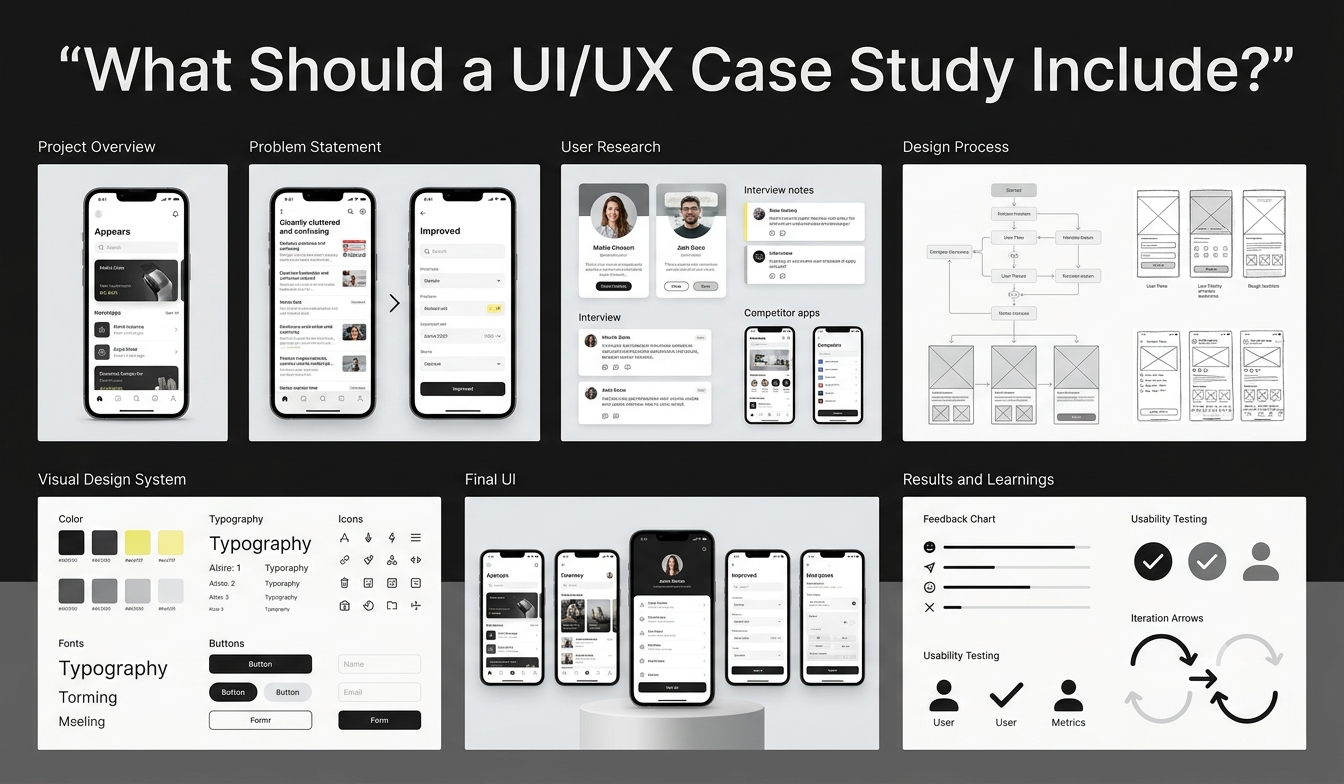
1. Project Overview
Start by introducing the project. Explain what you designed, the purpose of the product and the main areas covered by the work.
Include the project type, your role, the tools used and the timeline where relevant. If it was a student or personal project, identify it honestly rather than implying that it was commissioned by a client.
What to show: A hero mockup, the main interface or a representative visual of the finished project.
2. Problem Statement and Objectives
Explain the challenge the project was intended to address. A problem statement gives the design work a clear purpose and helps readers understand why particular decisions matter.
For example, a shopping app project might explore how to organise product discovery, order information and promotional offers within one interface. The exact problem statement should reflect the project's original brief or the problem identified by the designer.
What to show: The problem statement, project objectives and any supporting evidence that explains the design challenge.
3. User Research and Competitor Analysis
Explain how the designer investigated the intended audience and existing solutions. Depending on the project, this could involve interviews, surveys, usability observations, competitor comparisons or secondary research.
The most important part is connecting research to the design. If a finding influenced navigation, content hierarchy or a particular feature, explain that relationship.
What to show: Research summaries, audience profiles, competitor comparisons and verified findings.
4. Design Process and Wireframes
Describe the stages through which the project developed. Depending on the work, this might include information architecture, user flows, low-fidelity wireframes, prototypes and iterations.
Early design explorations can be particularly useful because they show how the interface evolved. Explain the decisions that shaped the final direction instead of displaying every version without context.
What to show: User flows, wireframes, selected iterations and relevant process documentation.
5. Visual Design System
A design system helps establish consistency across the interface. This section can explain the typography, colours, iconography, spacing, grid and reusable components used in the project.
Avoid simply listing design specifications. Explain how they support readability, visual hierarchy, consistency and the intended experience.
What to show: Colour palettes, typography samples, component libraries, icons and grid layouts.
6. Final UI and Key Features
Present the finished interface using clear, readable screenshots. Rather than displaying every screen in one large collage, select the screens that best explain the main user journey.
For each important screen, briefly explain its purpose, the design decisions involved and how it fits into the overall experience.
What to show: High-fidelity screens, device mockups, prototypes and relevant responsive layouts.
7. Results, Learnings and Next Steps
Conclude with what the project achieved. This could include completed deliverables, usability testing results, feedback received or lessons learned during the design process.
If the project was not launched or tested with real users, state that clearly. A concept project can still demonstrate design skills without claiming improvements in conversions, engagement or usability that have not been measured.
What to show: Verified outcomes, feedback, testing insights or a concise summary of the completed work.
3 UI/UX Project Examples by HACA Design School Students
The following case studies showcase design projects prepared by HACA Design School students. AudioHub focuses on an audio-product shopping experience, Marryme explores wedding outfit discovery, and Learn Loop presents a digital learning platform.
Each project includes different design deliverables, offering a closer look at how students translated a product concept into app and website interfaces.
Project 1: AudioHub
Project category: Mobile app UI/UX design and e-commerce website
Key areas: User research, competitor analysis, visual design system, mobile app screens and landing-page design
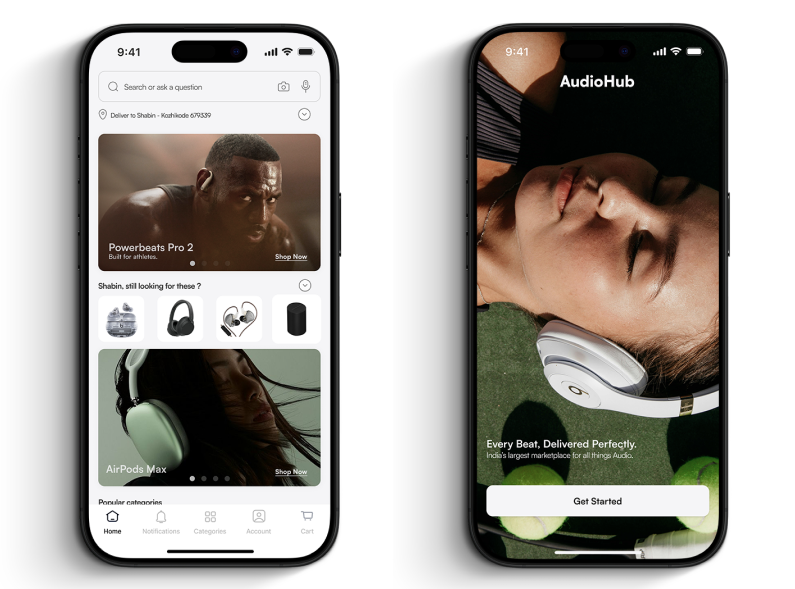
Project Overview
AudioHub is a UI/UX design project focused on creating a digital shopping experience for audio products. The project includes a mobile interface for browsing products, tracking orders and discovering promotional offers, alongside a website landing page.
The case study documents several aspects of the design process, including user research, competitor analysis, visual language, typography, colour selection, iconography and grid systems. Together, these elements provide an opportunity to explain how the project's visual identity and interface components fit into a cohesive experience.
For readers exploring UI/UX project examples, AudioHub demonstrates how a single project can be presented through both the finished interface and the design documentation behind it.
Understanding the Design Challenge
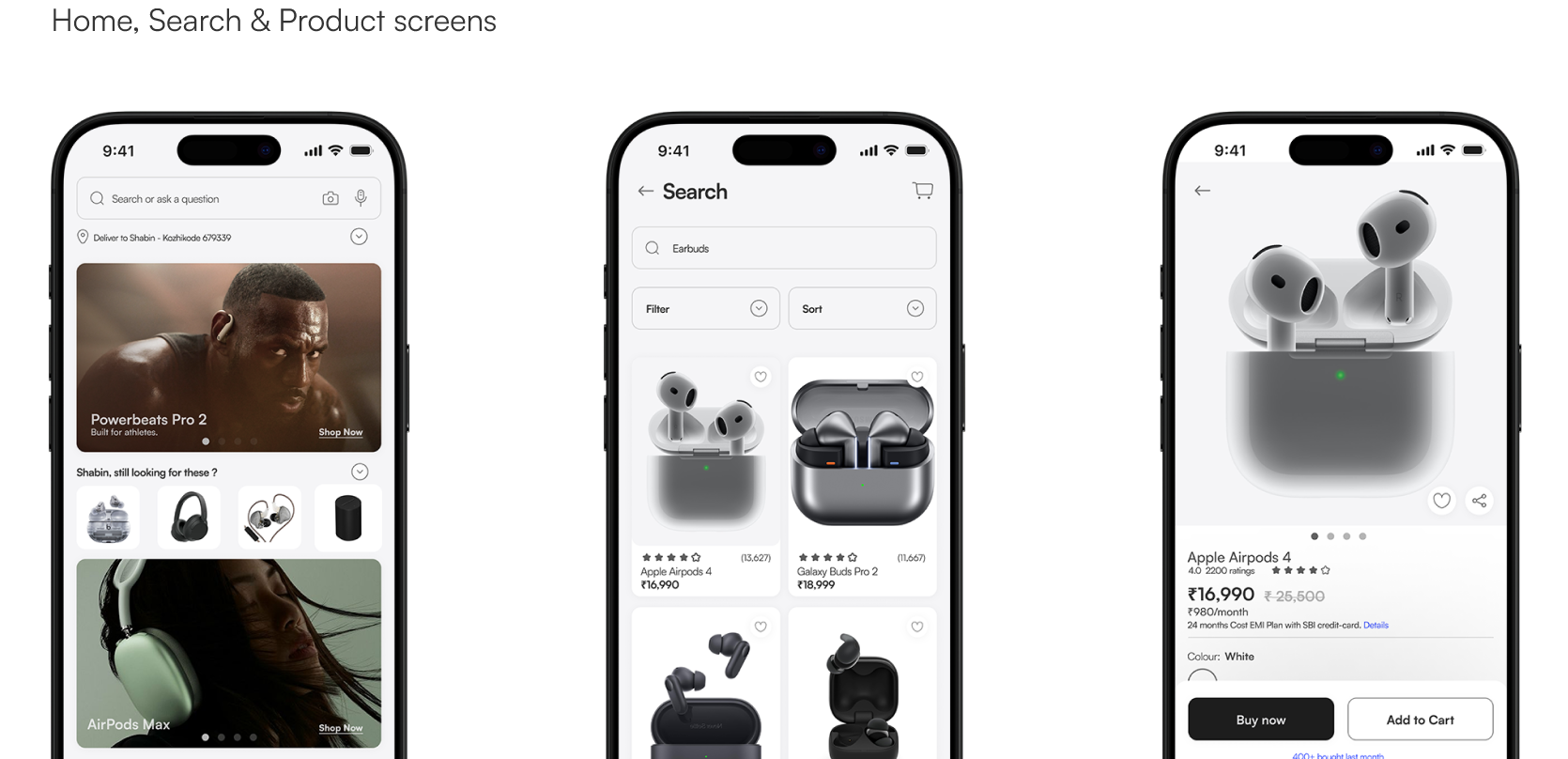
An e-commerce interface needs to help users navigate products and access relevant information without unnecessary complexity. In an audio-product shopping experience, this can involve organising product discovery, presenting offers and making order information accessible.
For AudioHub, the case study can introduce the specific design challenge identified in the original project brief. Explain what the student wanted to improve, who the intended users were and which aspects of the shopping journey required attention.
This section should focus on the actual problem the student explored. Avoid describing an assumed usability issue as a confirmed research finding unless the project provides evidence for it.
How to present this section in your own case study: Introduce the problem in a few sentences, explain why it matters to the intended user and identify the main objective of the design.
User Research and Competitor Analysis
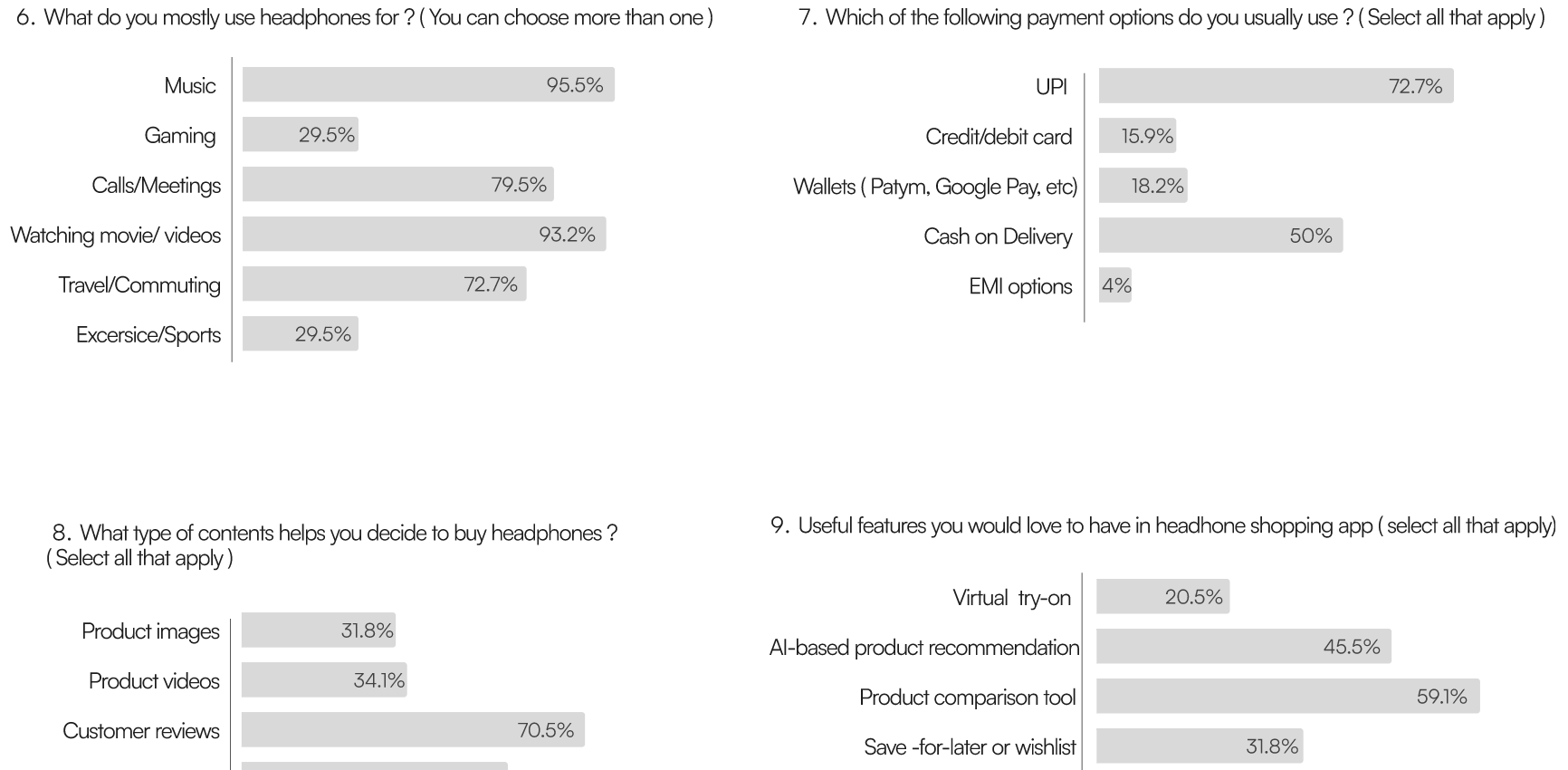
The AudioHub project includes documentation for user research, audience analysis and competitor comparisons. These visuals can help readers understand how the designer explored the product category and considered the needs of the intended audience.
When presenting this section, explain the research methods used and highlight the most relevant findings. For instance, if the research identified a difficulty with product discovery or navigation, describe how that finding influenced the design direction.
The competitor analysis should also explain what was learned from the products reviewed. Rather than simply showing a comparison table, identify the patterns, strengths or gaps that genuinely informed the design decisions.
How to present this section in your own case study: Include the research method, key findings and a clear explanation of how those findings influenced the interface. Use the student's actual data and conclusions.
Developing the Visual Design System
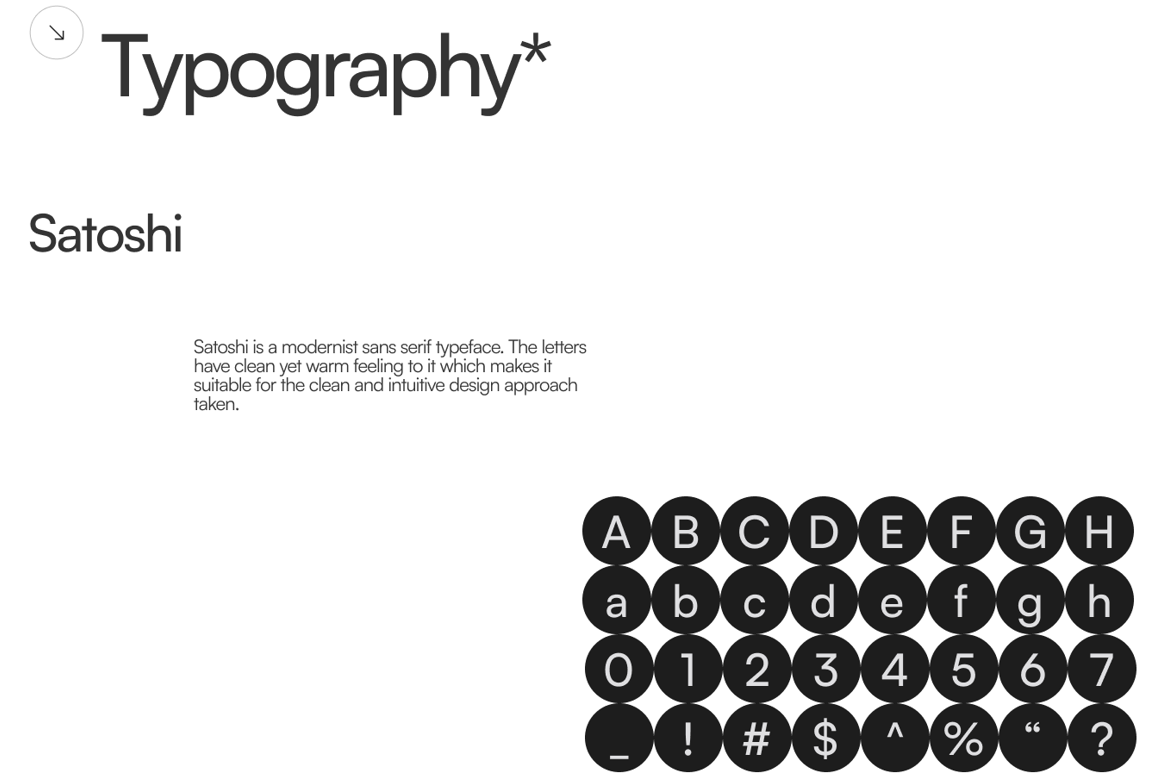
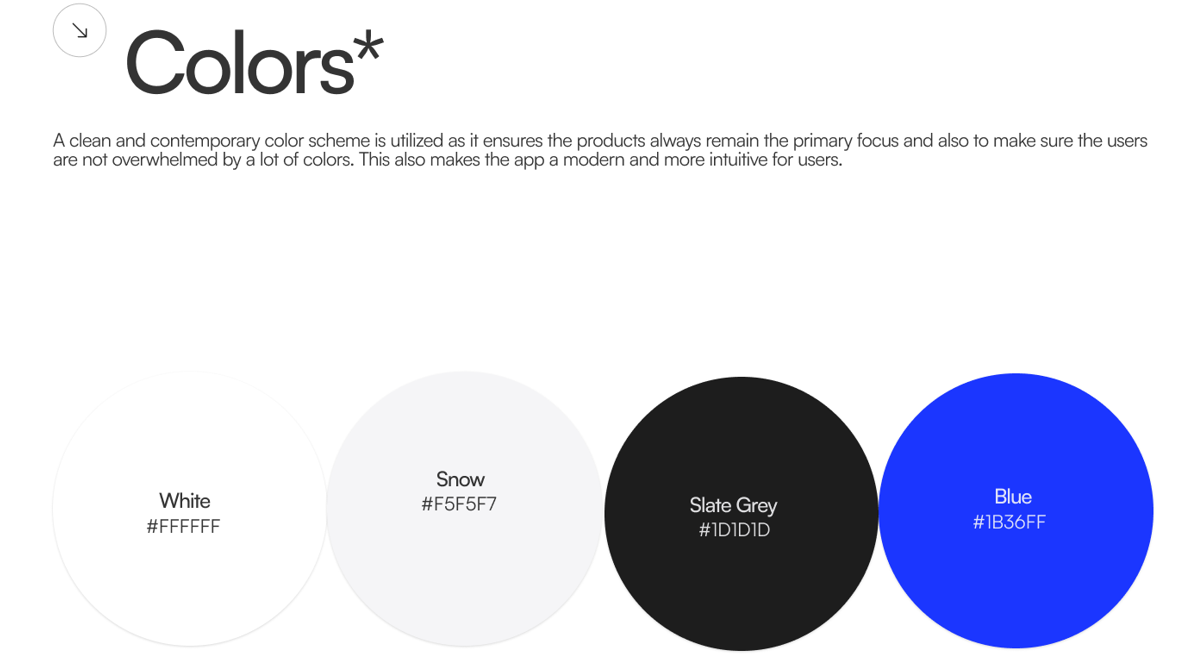
A consistent visual language helps users recognise familiar interface elements across different screens. It also provides a set of rules that guide the design as the product grows.
The AudioHub design documentation identifies Satoshi as its typeface and includes a palette combining neutral shades, black and a vivid blue accent. It also documents iconography and grid specifications.
Typography: Explain how the typeface supports the interface's visual hierarchy, from headings to supporting information and smaller interface labels.
Colours: Describe how the selected palette creates contrast and establishes a consistent visual identity. Where possible, show how the colours are applied to actual screens.
Iconography: Explain how a consistent icon style helps users recognise interface actions and keeps the design visually cohesive.
Grid system: Describe how alignment, spacing and layout rules help organise elements across the interface.
These elements should not be presented as isolated design assets. Connect them to the final screens so readers can see how the system works in practice.
Presenting the Final Mobile App
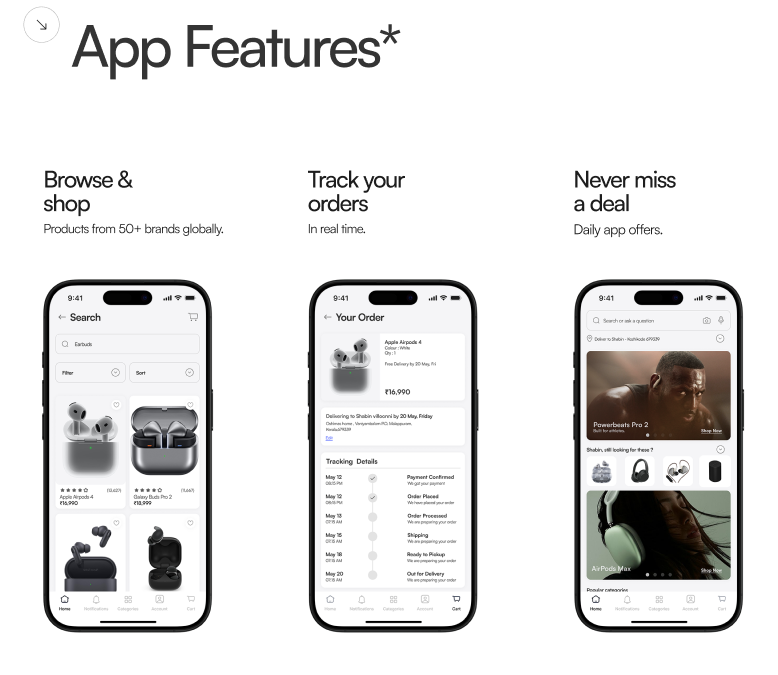
The final app interface brings the project's visual language into a shopping experience. When presenting these screens, explain the purpose of each feature rather than relying on the mockups alone.
Browse and shop: Introduce the screen used to explore products. Explain how the layout organises product information and supports browsing.
Track your orders: Describe how the order information is presented and how the screen fits into the overall shopping journey.
Never miss a deal: Explain how the deals section presents promotional content and allows users to explore offers.
For each screen, identify a specific design decision that is visible in the interface. This might involve layout, visual hierarchy, information grouping or navigation, depending on what the screenshots demonstrate.
A useful case study makes it easy to understand not only what each screen contains but also why the designer organised it that way.
Extending the Experience to a Website
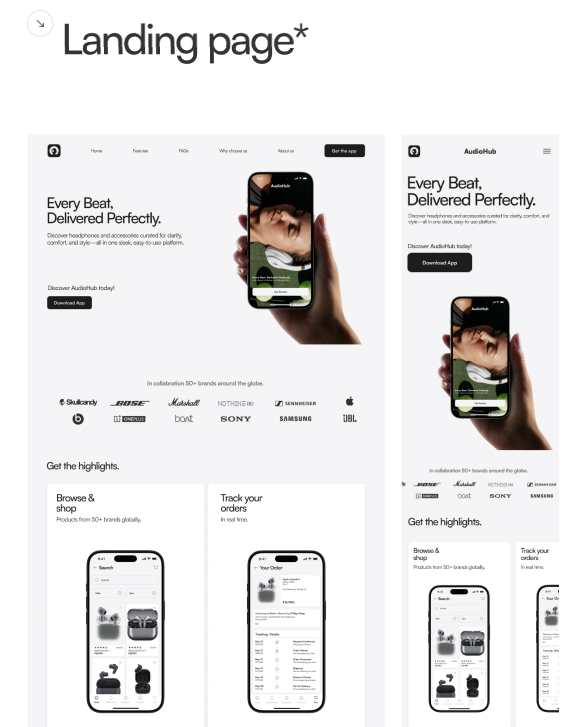
AudioHub also includes a landing-page design, allowing the case study to demonstrate how the same visual identity can be applied to a website.
The desktop and mobile layouts provide an opportunity to explain how content is organised across different screen sizes. Discuss the typography, imagery, layout and interface patterns that remain consistent, along with any layout changes made to accommodate smaller screens.
If the student designed specific responsive breakpoints or tested the website on different devices, include those details where supported by the project documentation.
Project Outcome and Key Learnings
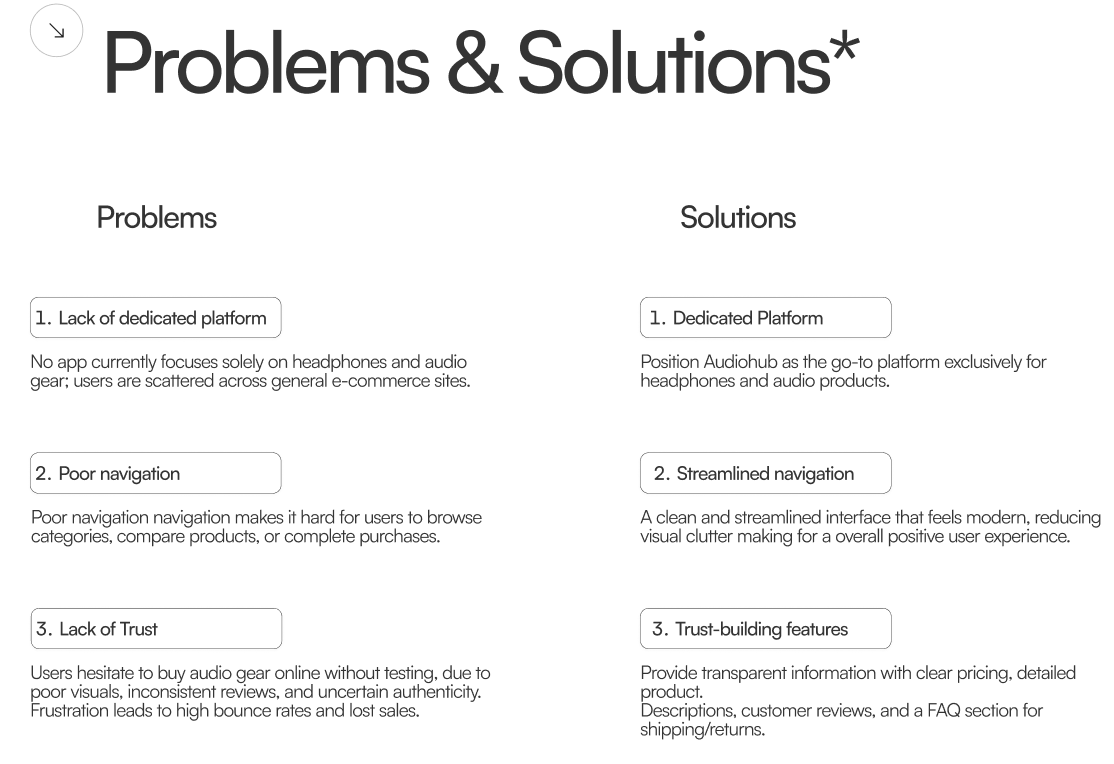
The documented AudioHub project brings together a mobile app interface, a visual design system and a website landing page. Its case study can demonstrate how these deliverables work together to form a consistent product experience.
What beginners can learn from AudioHub:
Show the thinking behind the interface instead of presenting only polished screens.
Connect research findings to specific design decisions.
Explain how typography, colours, icons and layout work together.
Use screenshots to demonstrate individual features and the overall user journey.
Distinguish completed deliverables from tested results or proposed improvements.
Project 2: Marryme
Project category: Mobile App UI/UX Design and Website Design
Design focus: Wedding outfit discovery, user flows, visual identity and responsive web design
Project Overview
Planning a wedding involves multiple decisions, from choosing outfits and exploring styles to finding inspiration for the big day. A digital platform can bring these activities together, helping users explore options and organise their wedding-related decisions in one place.
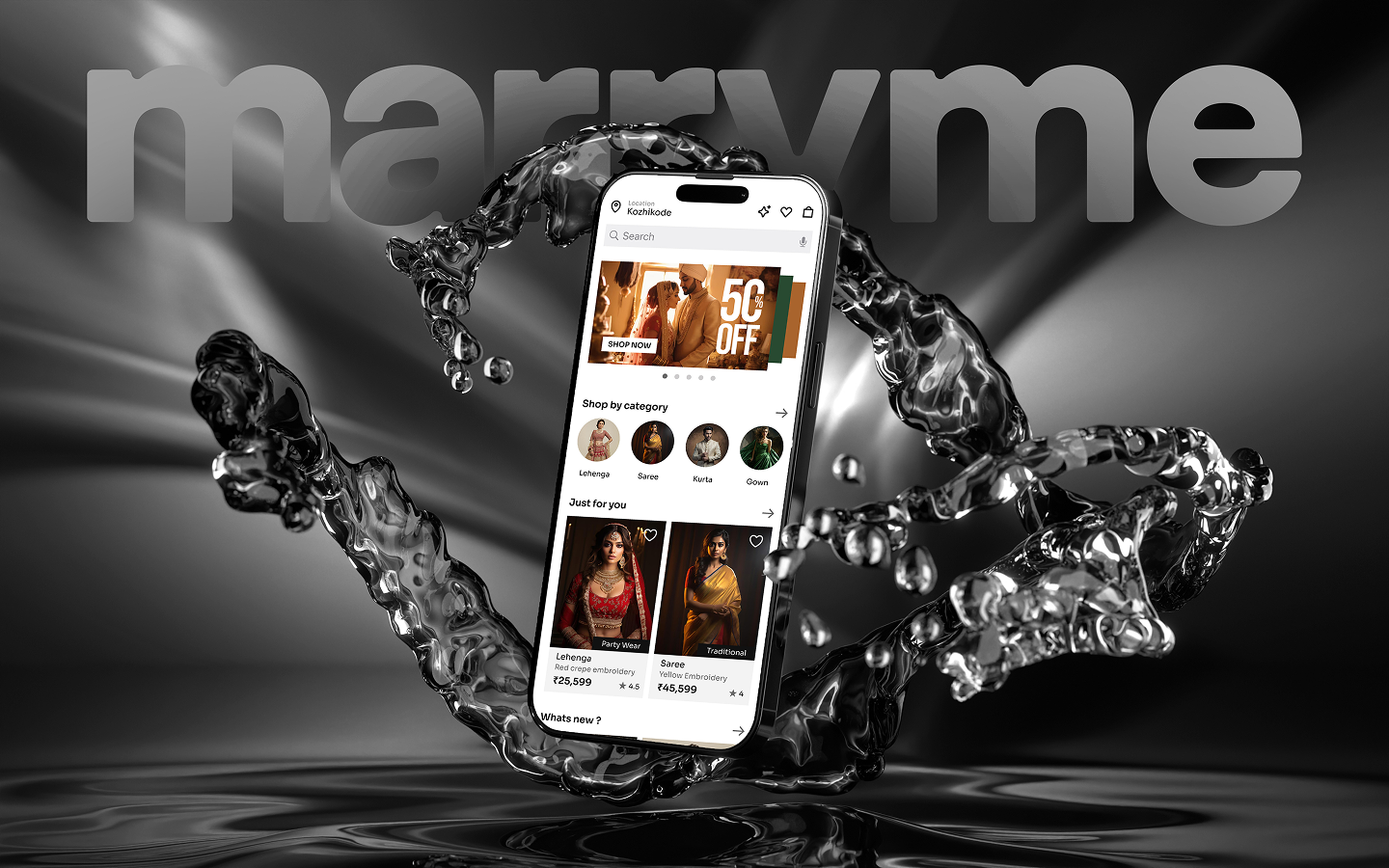
Marryme is a UI/UX design project that explores a digital experience for wedding planning and outfit discovery. The project includes a mobile app interface, onboarding screens, shopping and discovery features, and a responsive website that communicates the brand's identity.
The case study demonstrates how a designer can approach a visually rich product category while maintaining consistency across mobile and desktop experiences.
Defining the Project Scope
The first step in presenting a UI/UX case study is explaining what the project aims to deliver. For Marryme, the available designs cover several parts of the digital experience, including account onboarding, outfit discovery, shopping interfaces and website layouts.
Rather than introducing every screen at once, organise the project around the main user journey. Explain what users can do, which features are included and how the mobile app and website work together within the concept.
How to present this in your own case study: Introduce the product, describe its intended audience and outline the deliverables. If you are working on a student project, distinguish the proposed concept from a product that has already launched.
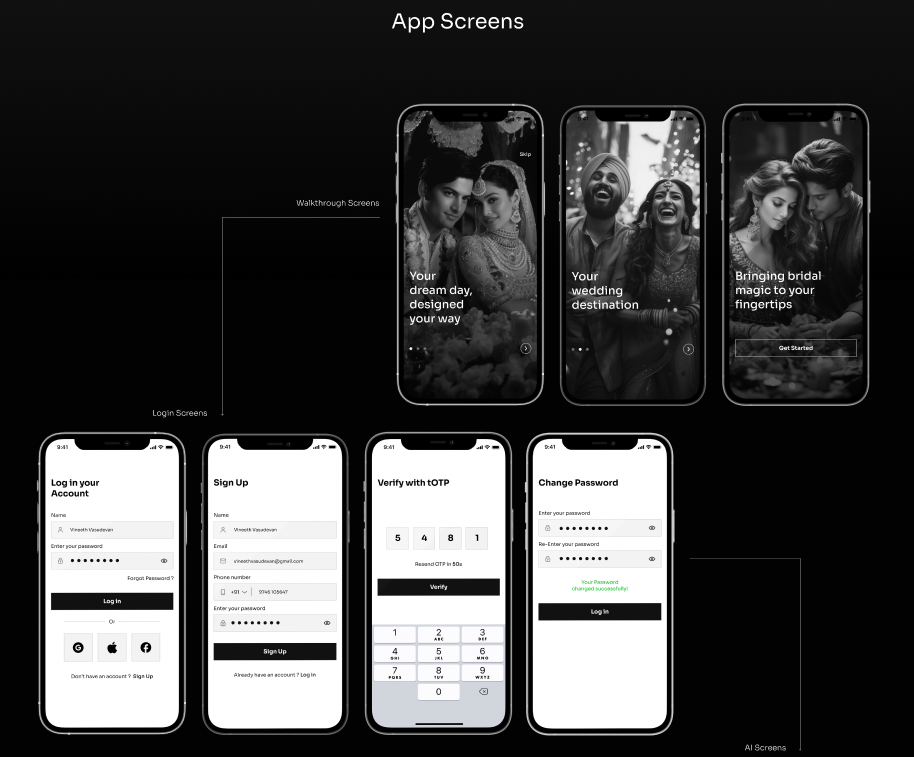
User Flows and Onboarding
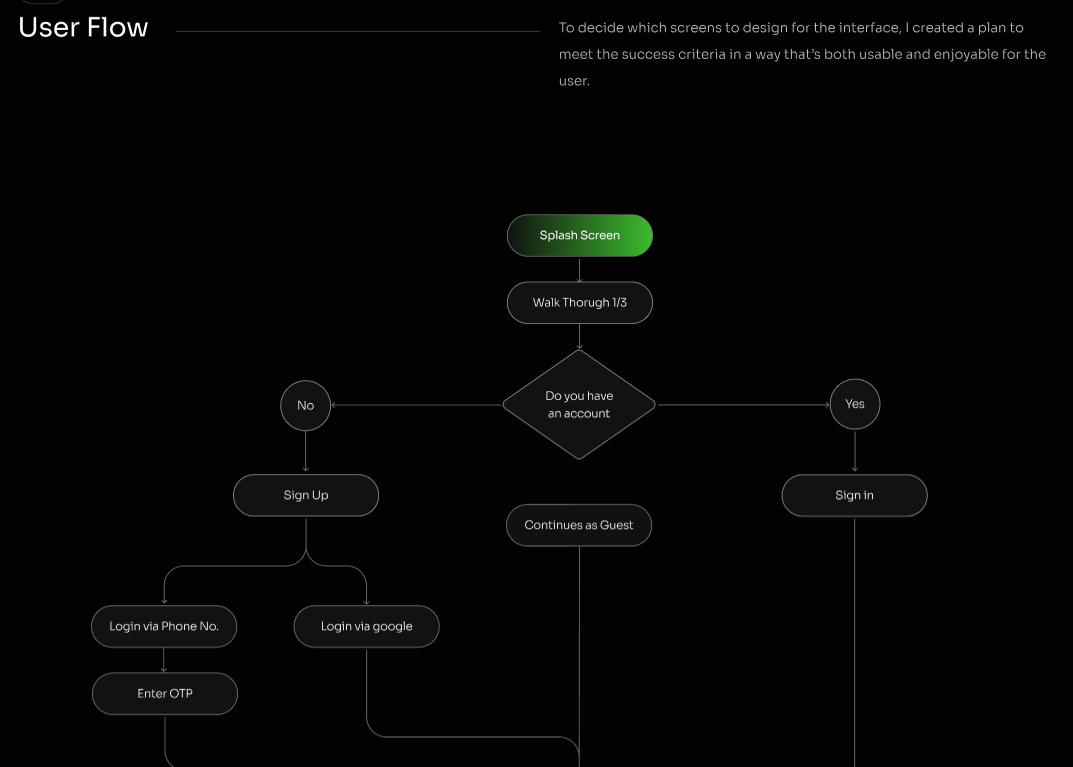
Before users can explore a digital product, they need a clear way to enter the experience and access its features. The Marryme designs include a series of onboarding and account-related screens that can be presented as one connected flow.
Explain how the screens guide users through the relevant steps, from entering account details to completing verification or recovering access where applicable. Showing the screens in sequence helps readers understand how one interaction leads to the next.
When presenting this part of the case study, highlight the organisation of information, the placement of form fields, the visibility of primary actions and the consistency of the interface across steps.
What beginners can learn: A UI/UX case study should explain how screens connect to form a journey. Showing a collection of login screens is less informative than explaining the purpose and sequence of the interactions.
Designing the Discovery Experience
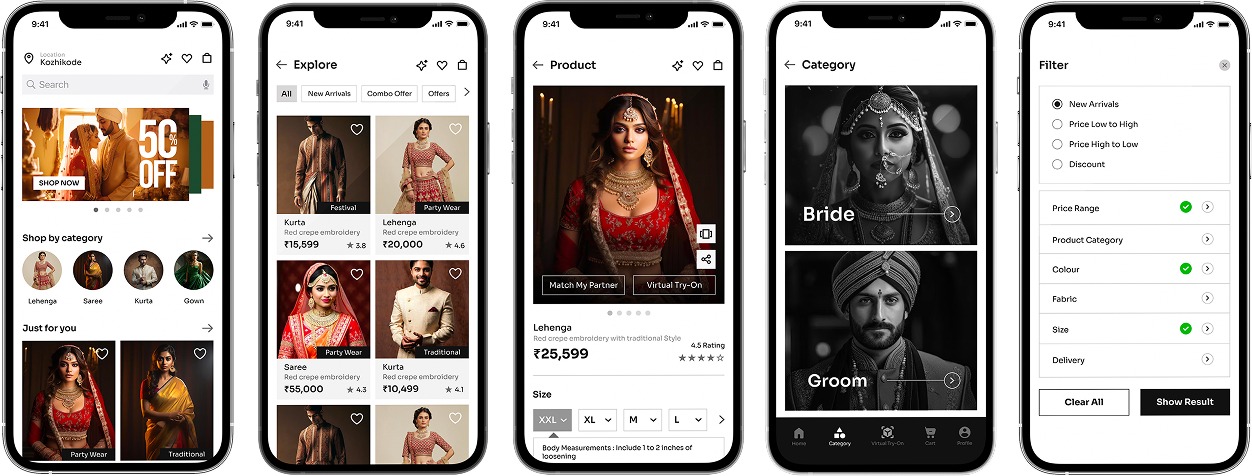
Visual discovery is an important part of a wedding-related shopping experience. Users may want to explore different outfits, compare styles and examine product information before deciding what interests them.
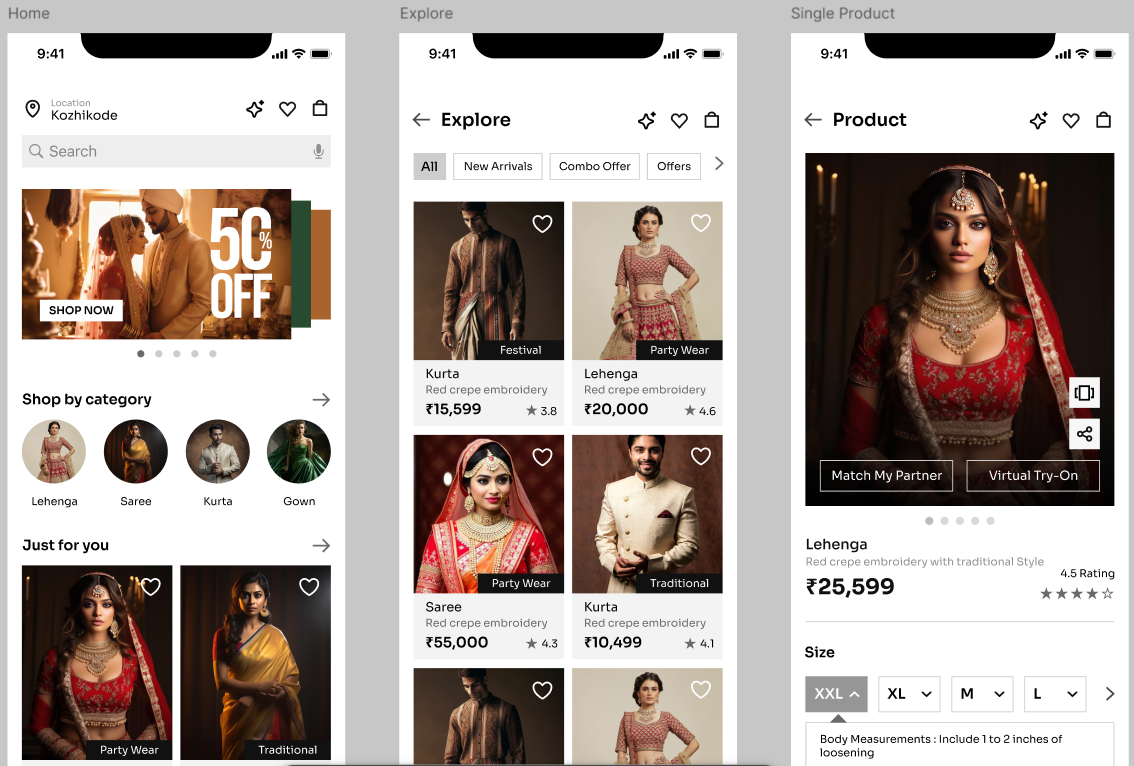
The Marryme interface includes outfit-focused browsing screens and product presentation layouts. Use these visuals to explain how imagery, content hierarchy and product information are organised throughout the experience.
Discuss the actual interface elements shown in the designs, such as category navigation, product cards, image presentation and product details. If the project includes filters, saved items or other shopping interactions, explain how they work using the corresponding screens.
What beginners can learn: Product-heavy interfaces need a clear visual hierarchy. A case study should show how the designer organises images, labels, navigation and product information to make the interface easier to explore.
Establishing the Visual Identity
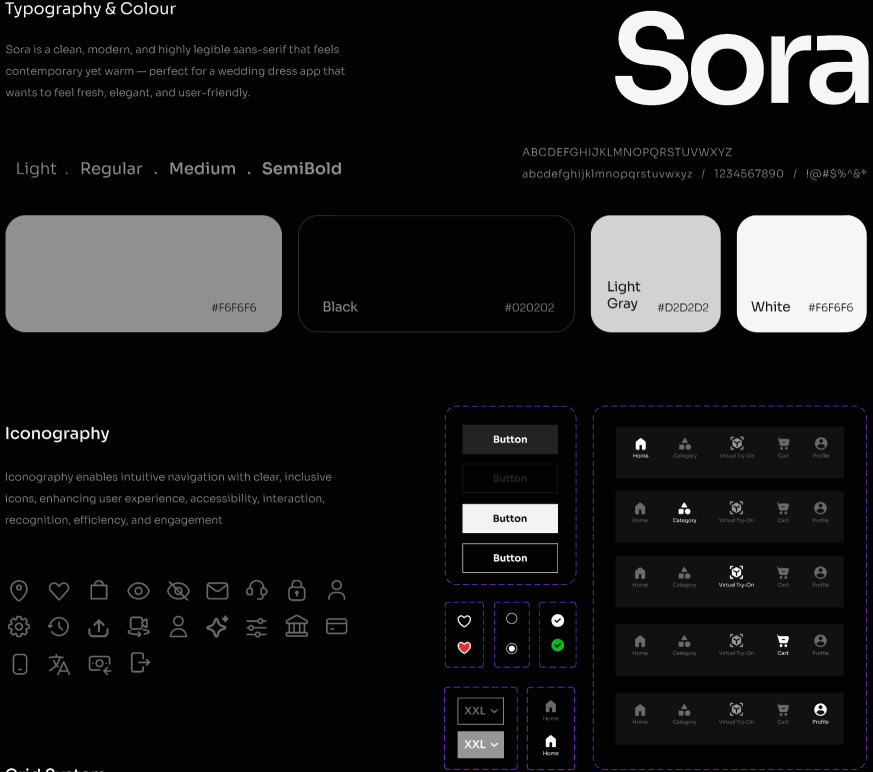
A consistent visual identity helps connect the different parts of a digital product. For Marryme, the design presentation uses a predominantly black-and-white visual direction, wedding imagery and a distinctive wordmark to establish its brand personality.
Use the design system section to explain the visual choices documented in the project. Discuss the typography, colour usage, icons, interface components and spacing rules, connecting each element to its appearance in the finished screens.
If the student explored multiple visual directions before selecting the final style, include the relevant alternatives and explain why the chosen direction best supported the intended brand experience.
What beginners can learn: A design system is not just a palette and a typeface. It shows how visual decisions become repeatable rules that maintain consistency across a product.
Presenting the Final Mobile App
The final mobile interface brings the project's visual direction into the user experience. Present the most important screens in the order that users would encounter them, rather than arranging them only for visual appeal.
Begin with the primary browsing experience, followed by relevant product details and other supporting screens. For each screen, explain its purpose and identify a specific design decision that can be seen in the interface.
Where the design includes different states or interaction flows, use them to show how the experience responds to user actions.
What beginners can learn: Final UI screens should demonstrate how the design works as a product. Use captions and short explanations to connect the visual presentation to the intended functionality.
Translating the Experience to a Website
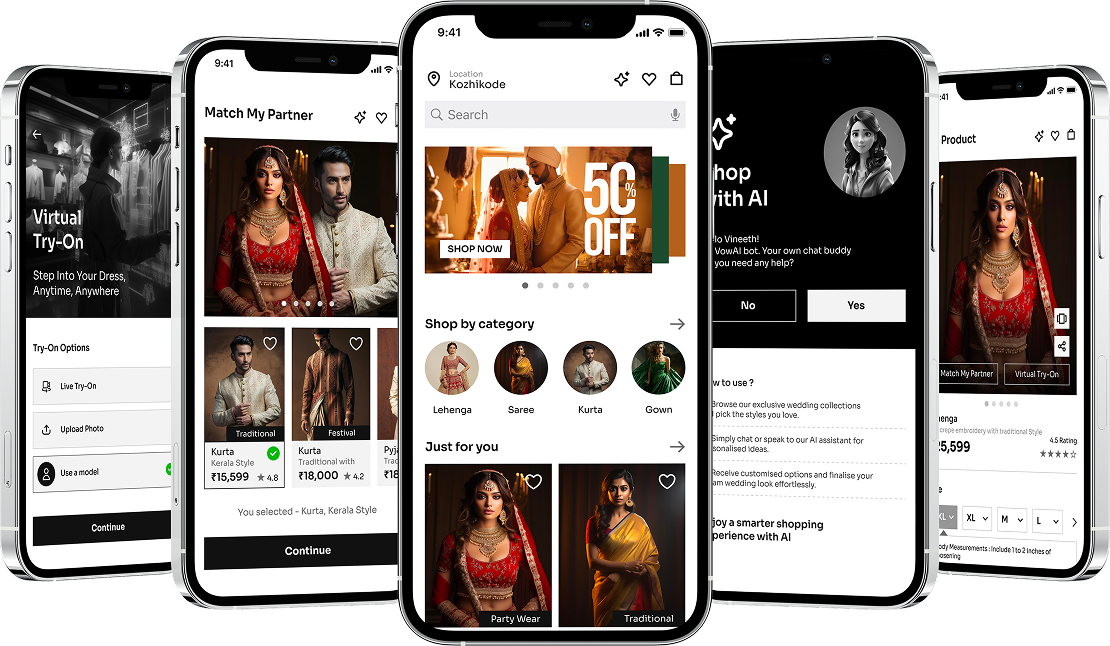

Marryme also includes website designs that extend the brand beyond the mobile app. This provides an opportunity to demonstrate how the same visual identity can be adapted to different screen sizes and browsing contexts.
The website presentation includes brand messaging, imagery, feature sections, testimonials, promotional content and frequently asked questions. These elements can be discussed in terms of content hierarchy and how the page guides visitors through the information.
Compare the desktop and mobile layouts to explain which elements remain consistent and how the page structure adapts to narrower screens. If the student documented responsive breakpoints or tested the layouts on actual devices, include those details as supporting evidence.
What beginners can learn: Responsive design is more than shrinking a desktop layout. Explain how content, spacing, navigation and visual hierarchy are adapted for different screens.
Documenting the Outcome and Key Learnings
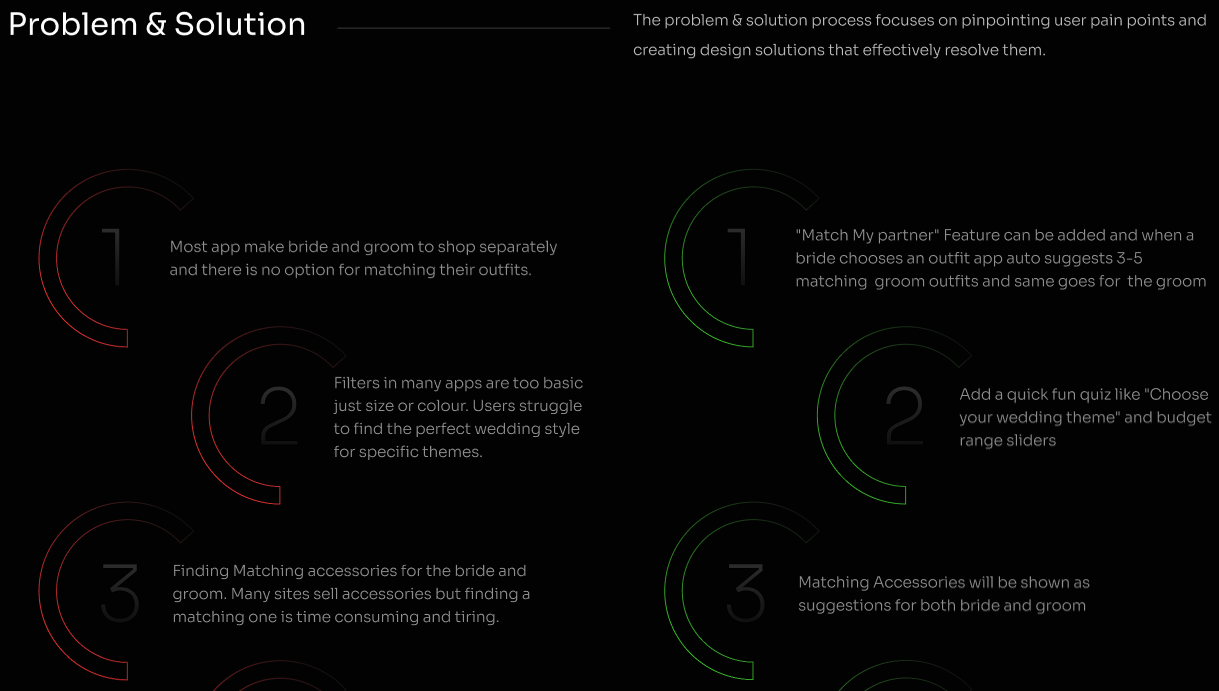
The Marryme project brings together a wedding-focused mobile experience, onboarding flows, outfit discovery screens, visual design documentation and website layouts.
When concluding the case study, summarise the deliverables that were completed and explain what the designer learned while developing the experience. If the project involved usability testing, feedback or prototype evaluation, include the verified findings and describe how they influenced the design.
What beginners can learn from Marryme:
Present connected screens as user journeys rather than isolated mockups.
Explain how visual hierarchy supports product discovery.
Show how branding and reusable design elements remain consistent across screens.
Demonstrate how a mobile experience translates into a website.
Finish with the actual deliverables, decisions and lessons learned.
Project 3: Learn Loop
Project category: Mobile App UI/UX Design and Responsive Website Design
Design focus: Learning experience, user flows, information architecture, wireframes and visual design systems
Project Overview
Digital learning platforms need to make educational content easy to discover, navigate and access. When learners use a platform to explore courses, manage their learning activities and access resources, the interface needs to organise these features into a clear and consistent experience.
Learn Loop is a UI/UX design project that explores an integrated learning platform through a mobile application and a responsive website. The project includes onboarding screens, account access flows, course-related interfaces, user research, wireframes and a documented visual design system.
The case study provides an opportunity to understand how a designer can approach a learning-focused digital product, from investigating the intended audience to developing the final interface.

Defining the Project and Its Objectives
A case study should begin by explaining the product concept and the scope of the work. In Learn Loop, the available designs cover both a mobile learning experience and a website intended to communicate the platform's features.
Introduce the intended audience and explain what the platform is designed to help users do. If the original project brief identifies specific learning challenges or objectives, include them here.
The project overview should also clarify the designer's role and the deliverables completed, giving readers enough context to understand the design decisions that follow.
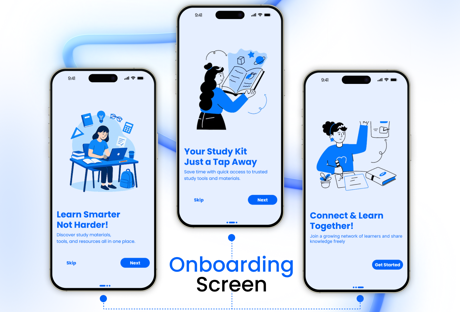
What beginners can learn: A clear project overview establishes the purpose of a case study. It helps readers understand the product, its intended users and the scope of the design before they explore individual screens.
2. Problem Statement and User Research
Understanding the intended audience is an important step when designing a learning platform. Different learners may have different expectations about how they discover content, navigate a course or access learning resources.
The Learn Loop case study documents user research, audience information, competitor comparisons and a problem-and-solution section. These visuals can be used to explain how the designer investigated the learning experience and identified areas to consider during the design process.
When writing this section, summarise the actual research findings and explain which design decisions they informed. For example, if the research identified difficulties with navigation or course discovery, describe how the interface responded to those findings.
The competitor analysis can also help explain how the designer evaluated existing platforms and considered opportunities for differentiation.
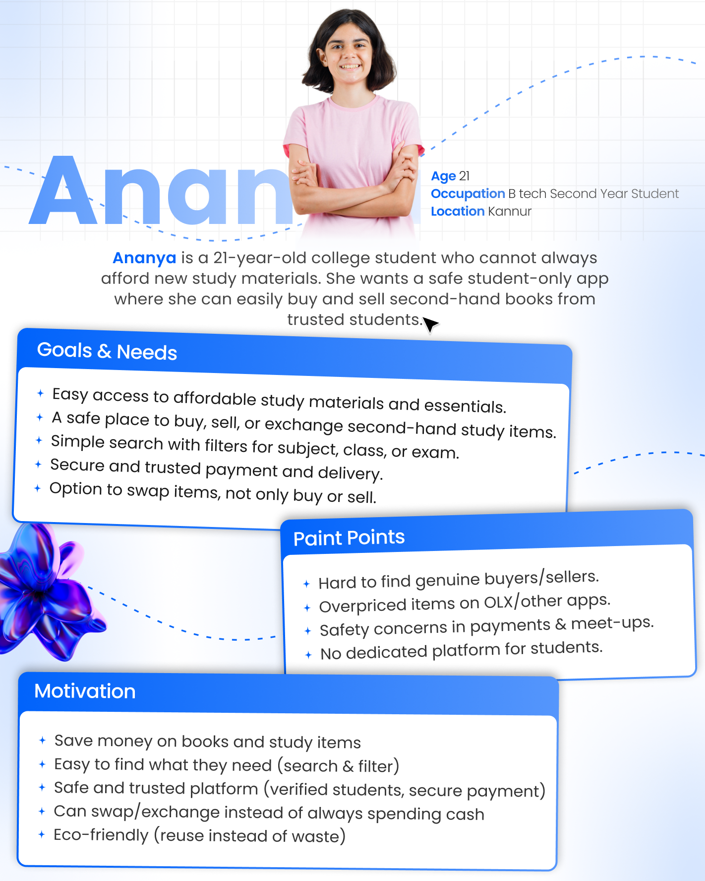
What beginners can learn: Research becomes meaningful when it influences the design. Present the findings alongside the decisions they informed, rather than displaying charts and comparison tables without explanation.
Mapping the User Journey and Information Architecture
Once the problem and audience are understood, the next step is to organise the experience. User flows help map the steps users take to complete an action, while information architecture establishes how content and features are grouped and connected.
In Learn Loop, the documented user flow and information architecture provide an opportunity to explain how the designer structured the platform before developing the final screens.
Walk readers through a relevant journey shown in the project. Explain where the journey begins, which decisions users make along the way and how the different screens or sections connect.
The information architecture can then demonstrate how the platform's content and features were organised to support that journey.
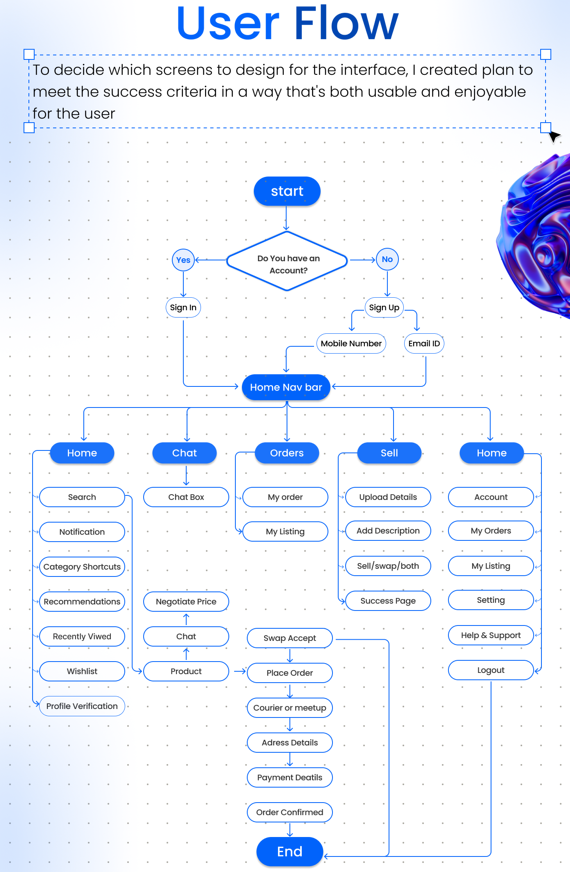
What beginners can learn: User flows and information architecture help explain the structure behind an interface. They show that designing a digital product involves organising interactions and content, not just choosing colours and arranging visual elements.
Developing Wireframes Before the Final UI
Wireframes provide a way to explore layout, content hierarchy and interface structure before committing to the final visual direction.
The Learn Loop project documents both low-fidelity and high-fidelity wireframes. This makes it possible to show how the interface developed from early structural explorations to more detailed screen designs.
Use selected examples to highlight changes between the two stages. Explain how content was arranged, how important actions were positioned and how the structure evolved as the design became more detailed.
Rather than including every wireframe, choose examples that demonstrate a meaningful design decision or a clear progression between stages.
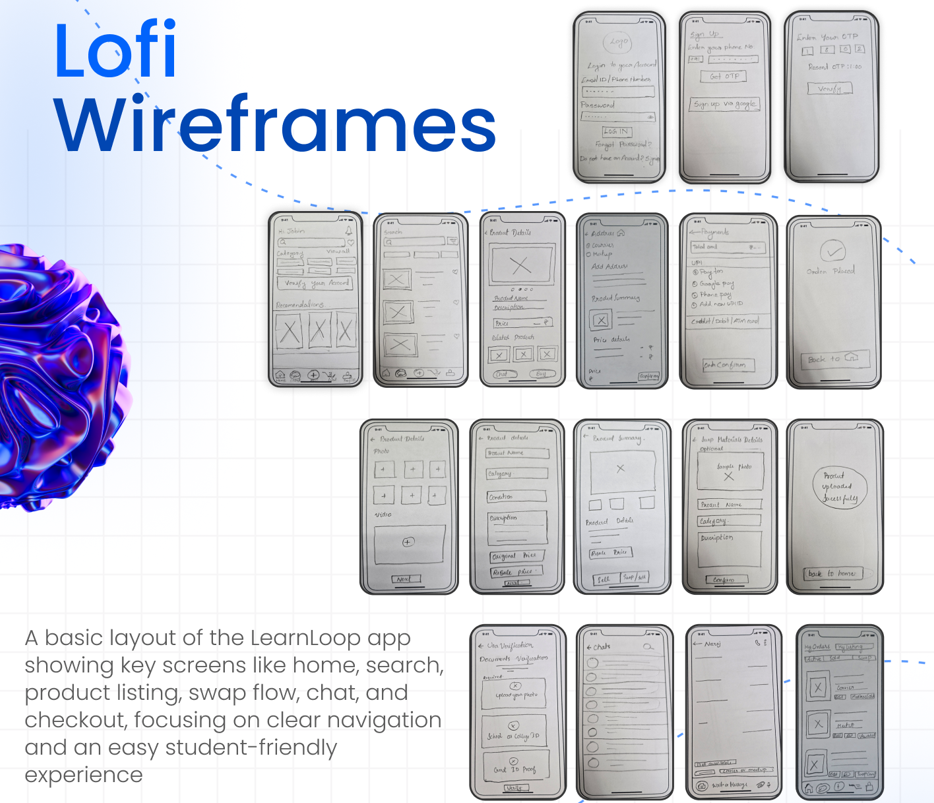
What beginners can learn: Wireframes help designers evaluate the structure of an experience before focusing on visual polish. Showing the progression from early layouts to refined screens makes the design process easier to understand.
Creating a Consistent Design System
A design system establishes the visual rules and reusable elements that keep an interface consistent across multiple screens.
Learn Loop's design documentation includes the Poppins typeface, a blue-led colour palette, interface components, iconography and grid specifications. These elements provide a foundation for explaining how the visual identity was applied across the mobile app and website.
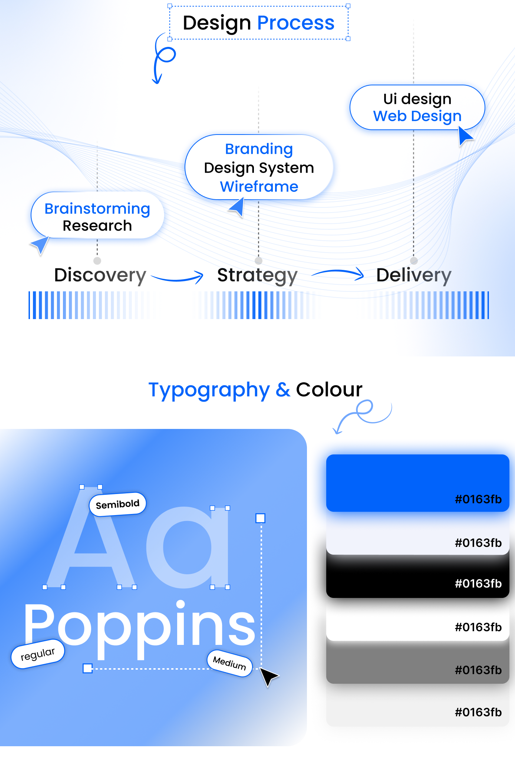
Typography and colour: Explain how the selected typeface and palette contribute to the visual hierarchy. Show how headings, supporting text, buttons and other interface elements are distinguished.
Components and iconography: Describe the reusable buttons, interface elements and icons documented in the project. Explain how consistency helps users recognise familiar controls.
Grid system: Show how alignment and spacing rules organise content across different layouts.
Connect these elements to the final screens to demonstrate how the design system supports the wider product experience.
What beginners can learn: A design system helps translate visual decisions into consistent interface patterns. It is especially useful when a project includes multiple screens or different platforms.
Presenting the Final Mobile App
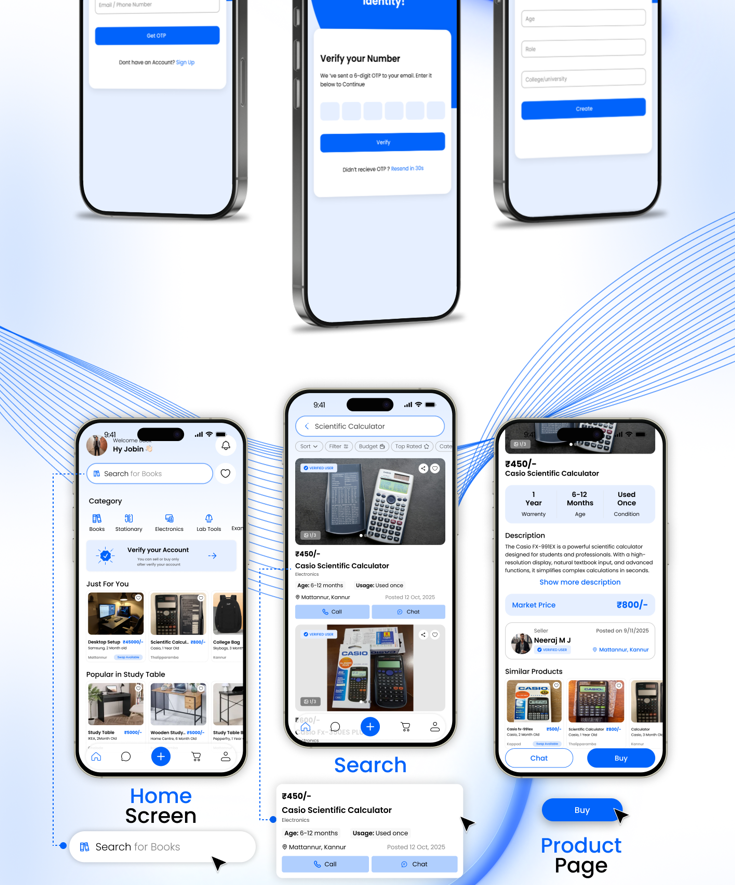
The mobile app screens show how the ideas developed during research, planning and wireframing are translated into a visual interface.
Present the screens in a logical sequence, beginning with the initial app experience and moving through the main features documented in the project. The available designs include splash, onboarding and login screens, alongside additional app interfaces.
For each group of screens, explain its role in the overall experience. Describe how the layout organises information, how primary actions are presented and how the interface maintains consistency across different stages of the journey.
What beginners can learn: The final UI should demonstrate how the proposed experience works from one screen to another. A logical presentation makes the interface easier to understand than a collage of unrelated mockups.
Extending the Experience to a Responsive Website
Learn Loop also explores the website experience, providing an opportunity to show how the product's visual identity can extend beyond mobile.
The website design includes the platform's branding, product messaging, feature sections and supporting interface visuals. These elements can be used to explain how the website introduces the product and organises information for visitors.
Compare the desktop and mobile layouts to show how the content hierarchy, spacing and interface structure adapt to different screen sizes. If the student documented specific responsive breakpoints or tested the layouts on different devices, include those details where available.
What beginners can learn: Responsive design requires more than scaling a layout. Explain how content and interface elements are adapted to different screen sizes while maintaining a consistent experience.
Project Outcome and Key Learnings
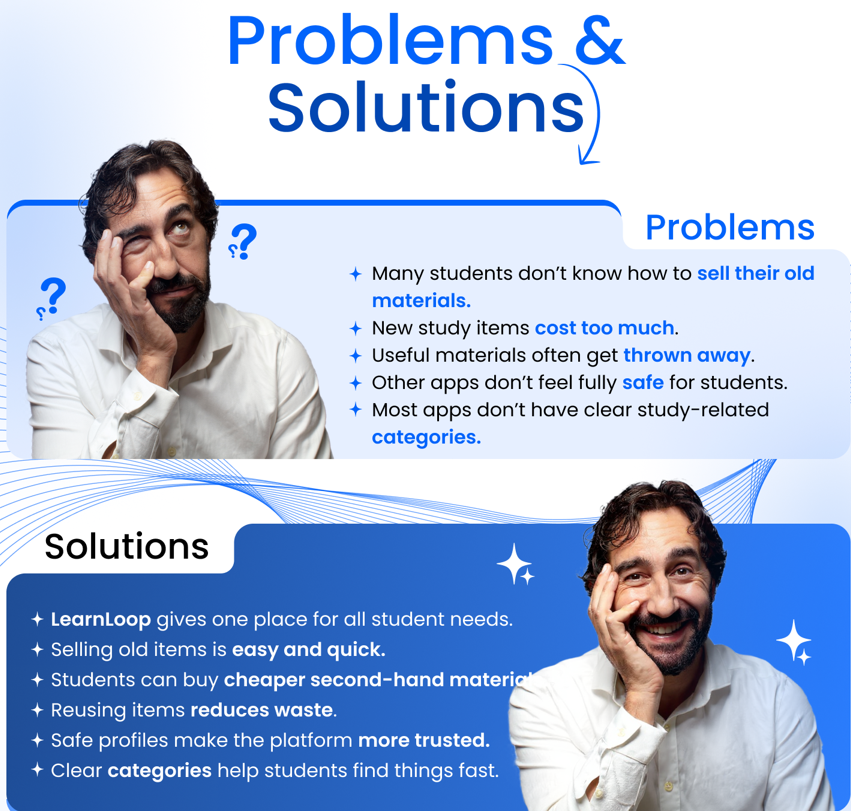
The Learn Loop project brings together user research, information architecture, user flows, wireframes, a visual design system, mobile app screens and website layouts.
Its case study demonstrates how a digital product can be documented from early planning through to the final interface. The combination of process documentation and finished screens helps readers understand the relationship between the structure of an experience and its visual presentation.
To complete this section, include the actual deliverables, any prototype or usability testing that was completed, and the lessons the student learned during the project. If Learn Loop was a concept or academic project, identify it as such and avoid claiming that the design improved learning outcomes without supporting evidence.
What beginners can learn from Learn Loop:
Explain the product concept and design objectives before showing the final screens.
Connect user research to the decisions made during the design process.
Use user flows and information architecture to explain how the experience is structured.
Show the progression from wireframes to high-fidelity UI.
Demonstrate how a design system supports consistency across mobile and desktop.
Report only the project outcomes and testing results that can be verified.
How to Present UI/UX Projects in a Portfolio
Once you understand how individual case studies work, the next step is to present your projects in a portfolio that is easy to navigate and review.
Choose Projects That Demonstrate Different Skills
Your portfolio does not need to contain five projects that all follow the same format. Choose work that demonstrates different aspects of UI/UX design, such as mobile app design, responsive websites, dashboards, user research or usability improvements.
The goal is to show the range of your approach without adding projects simply to increase the number of entries.
Make Screenshots Readable
Screenshots are central to a visual case study, but large collages can make individual screens difficult to understand. Use clear images, crop them to highlight relevant details and place each visual close to the explanation it supports.
If you are presenting a long Figma board, export its relevant frames individually. Add descriptive captions and alternative text so the visuals remain understandable to readers using different devices or assistive technologies.
Explain Your Individual Contribution
If the project was completed as part of a team or course, clarify which parts you worked on. Explain your role in research, wireframing, visual design, prototyping or testing rather than implying that you completed every stage independently.
Show Decisions, Not Just Deliverables
A case study becomes more informative when you explain why you selected a particular layout, changed a component or reorganised information. Include the reasoning behind meaningful decisions and, where available, show how feedback or testing influenced the result.
Be Honest About Project Outcomes
Do not claim that a design improved conversions, reduced task completion time or increased engagement unless those outcomes were measured. For student and concept projects, completed deliverables, documented iterations and lessons learned are valuable evidence in their own right.
Once you have documented your design process, the next step is to organise your work into a portfolio. This guide to creating a design portfolio for beginners explains how to present your skills and projects clearly.
Common Mistakes to Avoid When Presenting a UI/UX Case Study
Even visually polished projects can be difficult to evaluate if the case study does not explain the work clearly.
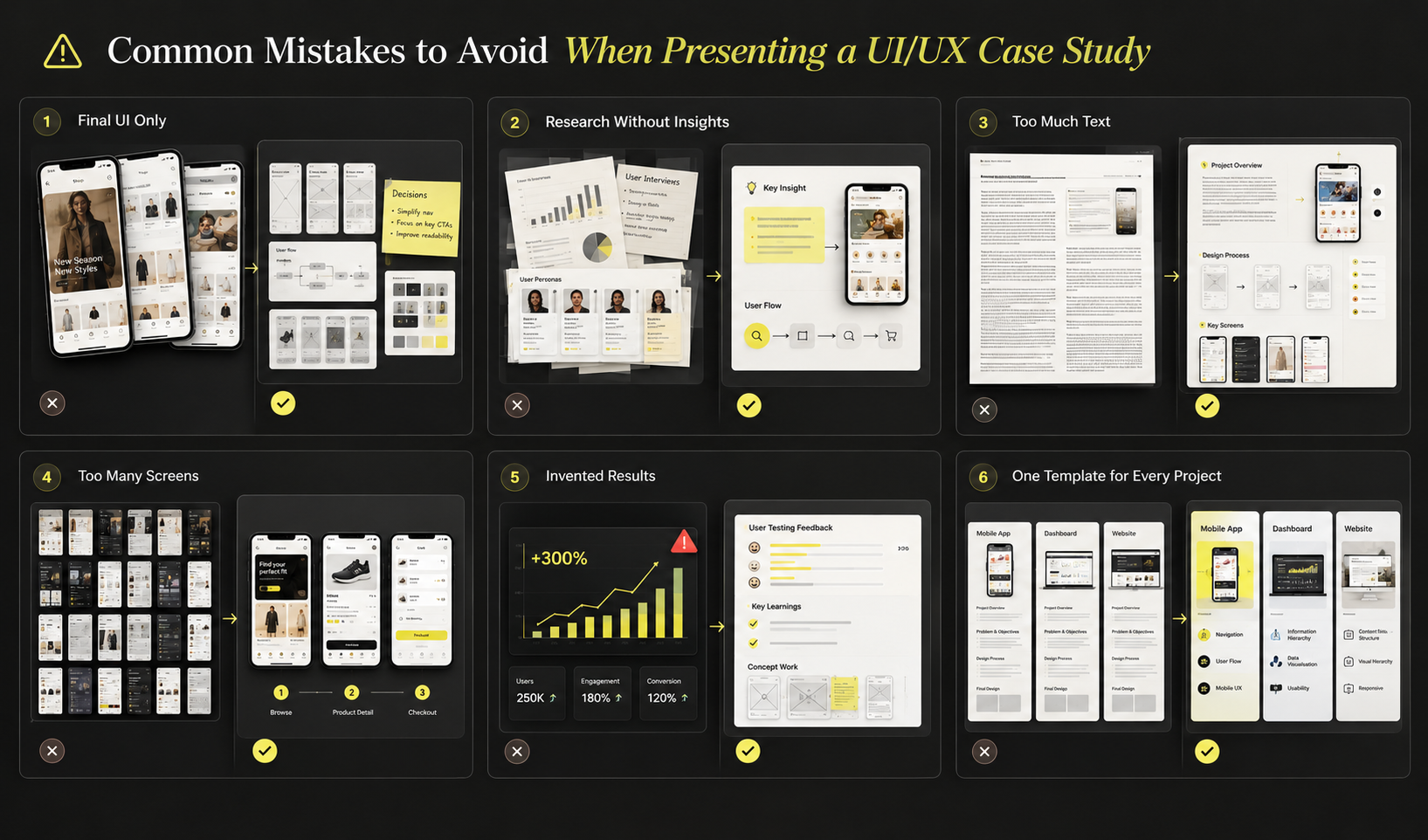
Showing only the final UI: Beautiful mockups can attract attention, but they do not explain the problem or the reasoning behind the design. Include the relevant process and decisions.
Adding research without conclusions: Charts and personas need context. Explain what the findings mean and how they influenced the project.
Writing too much without supporting visuals: Long explanations can make a case study difficult to scan. Break the content into meaningful sections and use screenshots to demonstrate the work.
Including every screen without a clear purpose: Select visuals that explain the main user journey or an important design decision. A smaller set of well-explained screens is often more effective than a large, unstructured gallery.
Inventing results: Do not present assumptions as research findings or concept designs as launched products. Clearly distinguish what was proposed, completed, tested and measured.
Using the same template for every project: A consistent overall structure is useful, but the content should reflect the actual project. A dashboard redesign may need more emphasis on information hierarchy, while a mobile app may require more explanation of navigation and user flows.
How Beginners Can Build Their First UI/UX Case Study
You do not need a professional client or a launched product to document a meaningful design project. A student assignment, self-initiated concept or redesign exercise can provide a useful starting point when the scope and limitations are clearly explained.
Begin with a problem that is specific enough to investigate. Define the intended audience, gather relevant evidence and identify what you want the design to accomplish. From there, document the decisions you make during the process, including wireframes, iterations and the reasons for changes.
When you prepare the case study, select the screenshots that best explain your work. Write concise descriptions, connect the research to the design and conclude with the deliverables and lessons learned.
If you are learning UI/UX design, working on practical projects can help you develop both your design skills and your ability to explain your work, as it helps beginners understand the skills and responsibilities involved in the field. So, if you are exploring this career path, read our guide on how to become a UI/UX designer to learn more about the role and how to get started.
Conclusion
A strong UI/UX case study tells the story behind a design. It helps readers understand the problem, the decisions that shaped the interface and what the designer learned while developing the solution.
The three projects featured here show different ways HACA Design School students have approached digital product design. AudioHub brings together an audio-shopping app and landing page, Marryme explores wedding outfit discovery across mobile and web, and Learn Loop focuses on a learning platform supported by user flows, wireframes and a design system.
Together, these examples demonstrate how student work can be presented through its project context, design process and final deliverables. The aim is not simply to display attractive screens, but to make the thinking behind each interface easier to understand.
If you want to develop your UI/UX design skills through practical projects and build a portfolio of your own, explore HACA Design School’s UI/UX Design Course in Calicut. It can be a useful next step towards learning interface design, understanding user experience principles and preparing projects for your portfolio.